In this guide, we will learn how to associate discounts from Shopify with your rewards, coupons and gift cards.
Create Shopify discount
To create a coupon with Shopify unique codes usable on your store, choose the Shopify option in the Discount associated section.
This opens the create discount dialog, where you define the type of discount you want to create on Shopify. If you are creating a new coupon, you can set up this discount before saving the coupon. JeriCommerce saves it as a draft row and attaches it to the coupon when the coupon is saved.
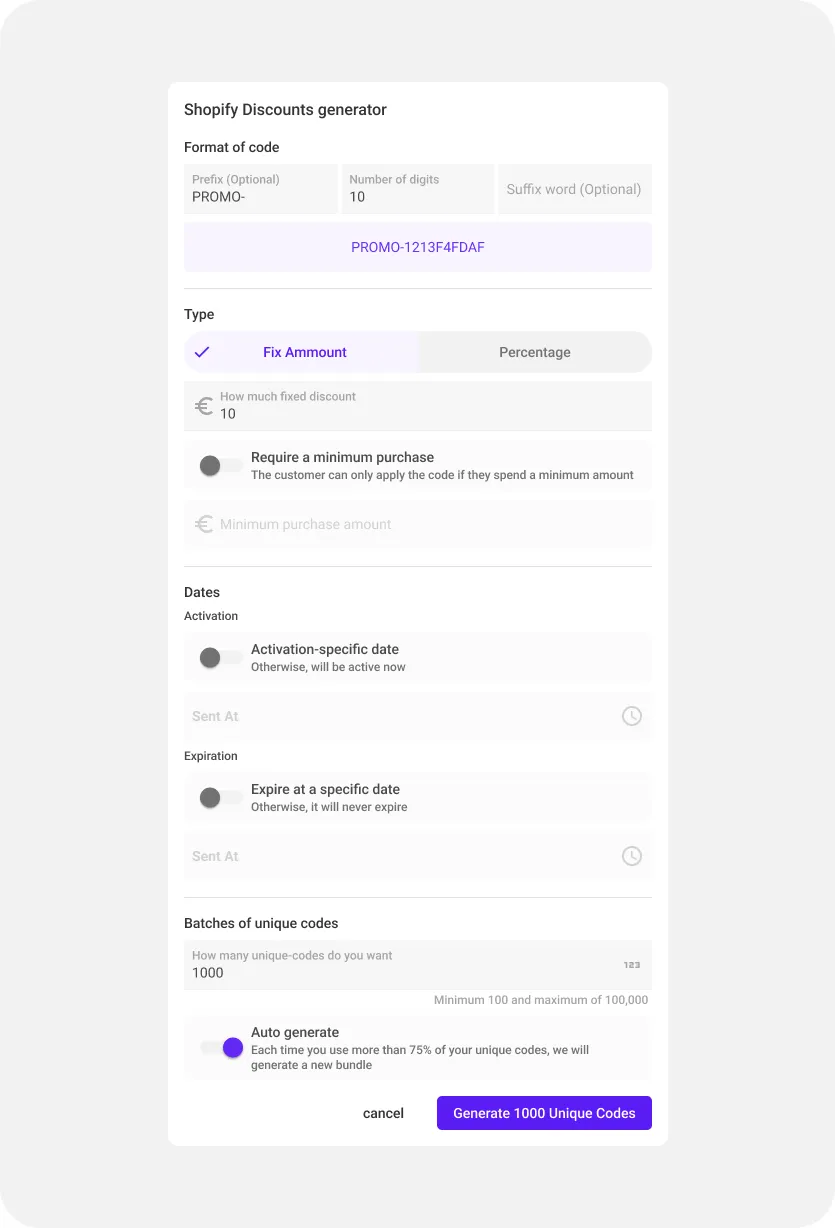 Creation coupon modal
Format of code
This section defines how your unique codes will appear. Here, you can add a prefix for all the unique codes or specify the length of the generated unique code.
Type
From there, you can choose to offer either a fixed amount discount or a percentage discount. You can also optionally set a minimum purchase amount for the order. The discount will always be associated with an order.
Dates
Here, you can specify the date from which these unique codes will be available for use, as well as their expiration date. If you do not modify these settings, the codes will be available from the creation date and will never expire.
Combine with other discounts
By default, Shopify treats every discount code as exclusive. If a customer has another promo active in their cart (a product or shipping discount), Shopify will not let your loyalty code apply on top.
Turn on Combine with other discounts if you want this batch to stack with product and shipping discounts in Shopify. The toggle is off by default, so leave it off when you want the loyalty code to be the only discount on the cart.
Batches of unique codes
This defines how many unique codes will be created after generating this coupon on Shopify and automatically imported into JeriCommerce. You can generate from 1 to 100,000 codes in a batch. You can also activate the Auto generate feature, which will create the same number of unique codes you specify when the total amount of available unique codes falls below 25%. By default in some cases is always activated and you can't change it.
Here you can find more information about the auto generate functionality.
How to edit the coupon behavior or add more options
Once you have created the discount, you will find it in the Shopify discounts section. There, you can modify some rules and view all the codes used by customers.
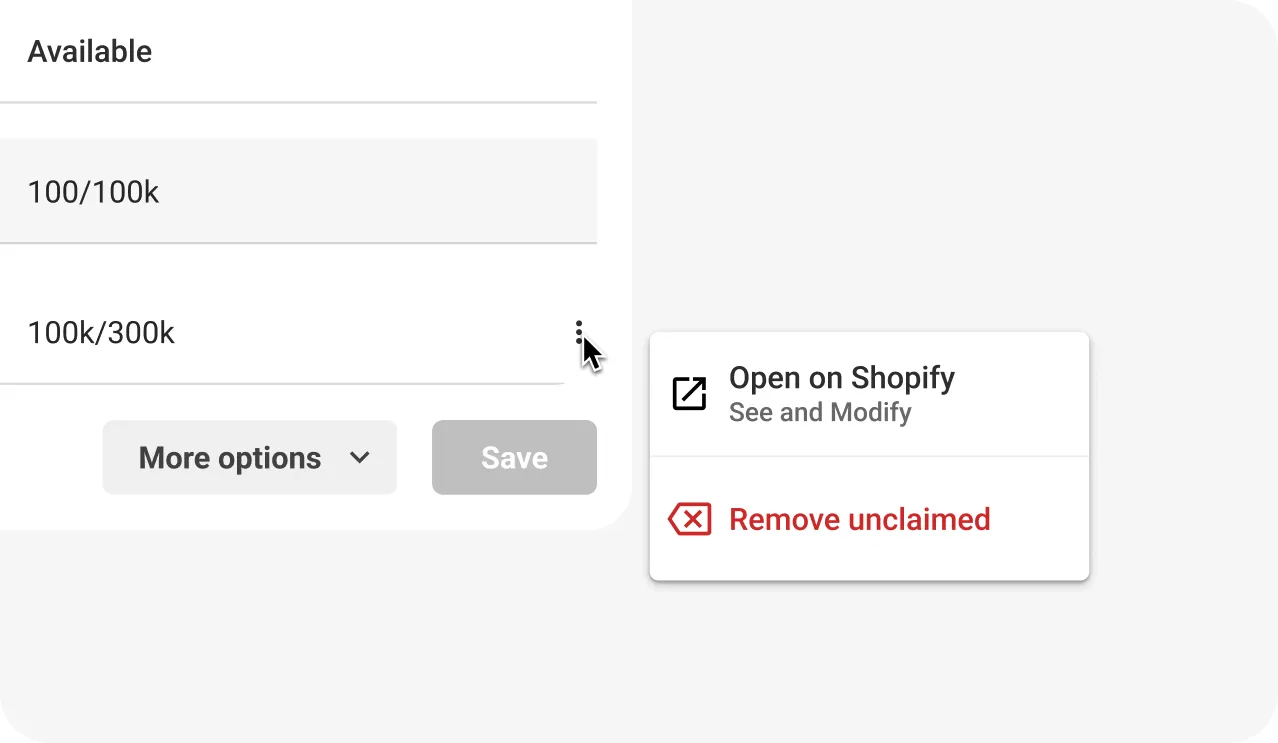
In the associated discount, inside the gift card, reward, or coupon, you should see the basic information. If you click on the three dots in the list of imports, you will see an option to open the specific coupon in Shopify.