Coupons let you give a discount to a specific customer without deducting loyalty points. Manage them in Loyalty > Coupons, separately from Ways to redeem, where customers claim rewards using their points.
You can assign a coupon manually, or send it through Shopify Flow and Klaviyo. The associated discount defines what the customer saves and which codes they receive.
Coupons can only be sent to customers who have a loyalty card installed. This is a requirement for using the coupons, and it is important to be aware of this.
How to create a coupon 
Open Loyalty > Coupons and click Create coupon.
Name 
The naming is an internal identifier for this coupon and will define how the slug looks. The slug will be the same name but in a sluggified format. You can always access this slug by clicking the button at the top of the left card of the coupon creation.
Notification content 
The coupon needs a basic configuration regarding the look and feel of the notification that the customer receives, as well as how it appears on the backside of the wallet card.
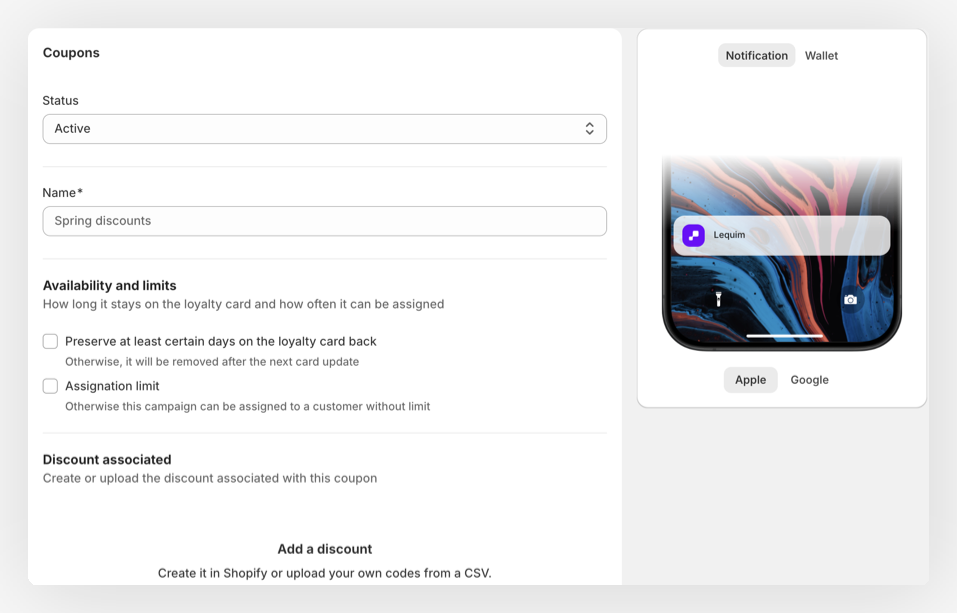
Availability & Limits 
You can choose how many days the link will remain on the back of the Loyalty Card. If you don't turn this on, the coupon link stays there until the Loyalty Card is updated for any other reason.
You can also limit how many times the same coupon can be given to a single customer. Turn on Assignation limit and set the Max. assignations per customer (for example, 1 so each customer can only ever receive this coupon once). If you leave it off, the coupon can be assigned to a customer any number of times. Once a customer reaches the limit, JeriCommerce blocks any further assignment of that coupon to them.
Discount 
Every coupon needs an associated discount before it can be saved. In the Discount associated section, create a Shopify discount or upload a CSV file containing codes. If you are creating a new coupon, JeriCommerce keeps the discount as a draft row and attaches it when the coupon is saved.
With a pre-generated batch, codes are distributed one at a time. You can see how many uploaded or generated codes remain, and eligible Shopify batches can use auto recharge. See unique codes and auto recharge.
On-demand Shopify codes 
For Shopify on-demand generation eligibility and expiry options, see on-demand Shopify codes. CSV uploads can include individual code expiry dates.
The discount itself can be a fixed amount, a percentage, free shipping, or a buy X get Y offer, and you can limit it to selected products, collections, or customer segments. Walk through the options in Create a Shopify discount.
When you assign this coupon to a customer through the API, Shopify Flow, Klaviyo, or another connected tool, JeriCommerce either assigns an available pre-generated code or creates an on-demand Shopify code at assignment.
This will convert the campaign URL into a link to our web app, where the customer can view their unique code and use it in your shop.
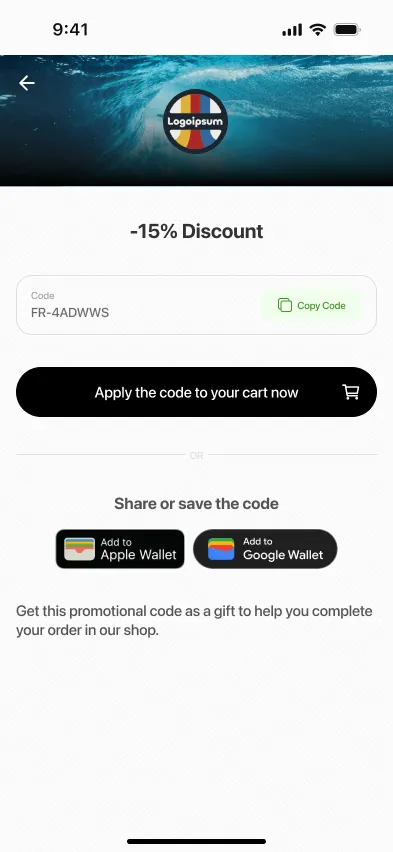
This page in our web app has three main functionalities:
- The customer can copy the code with just one click.
- The customer can directly apply the coupon in their Shopify store. If you have activated the multipass feature, the unique code will be applied to an authenticated user.
- To make this discount more accessible, the customer can easily add this coupon to their wallet by clicking one of the wallet icons, either Apple or Android.