The Tier Status block brings your VIP program into the Shopify customer account page. Logged-in customers see exactly where they stand and what it takes to reach the next level, right from their account profile.
It works well alongside the Account Rewards block, which lets the same customers redeem their points without leaving the account page.
This block lives on the Shopify customer account profile page, so your store needs New Customer Accounts turned on in Shopify. It appears in the customer account theme editor under the JeriCommerce app.
What Customers See 
- Current tier and points. The customer's tier name and their tier point balance.
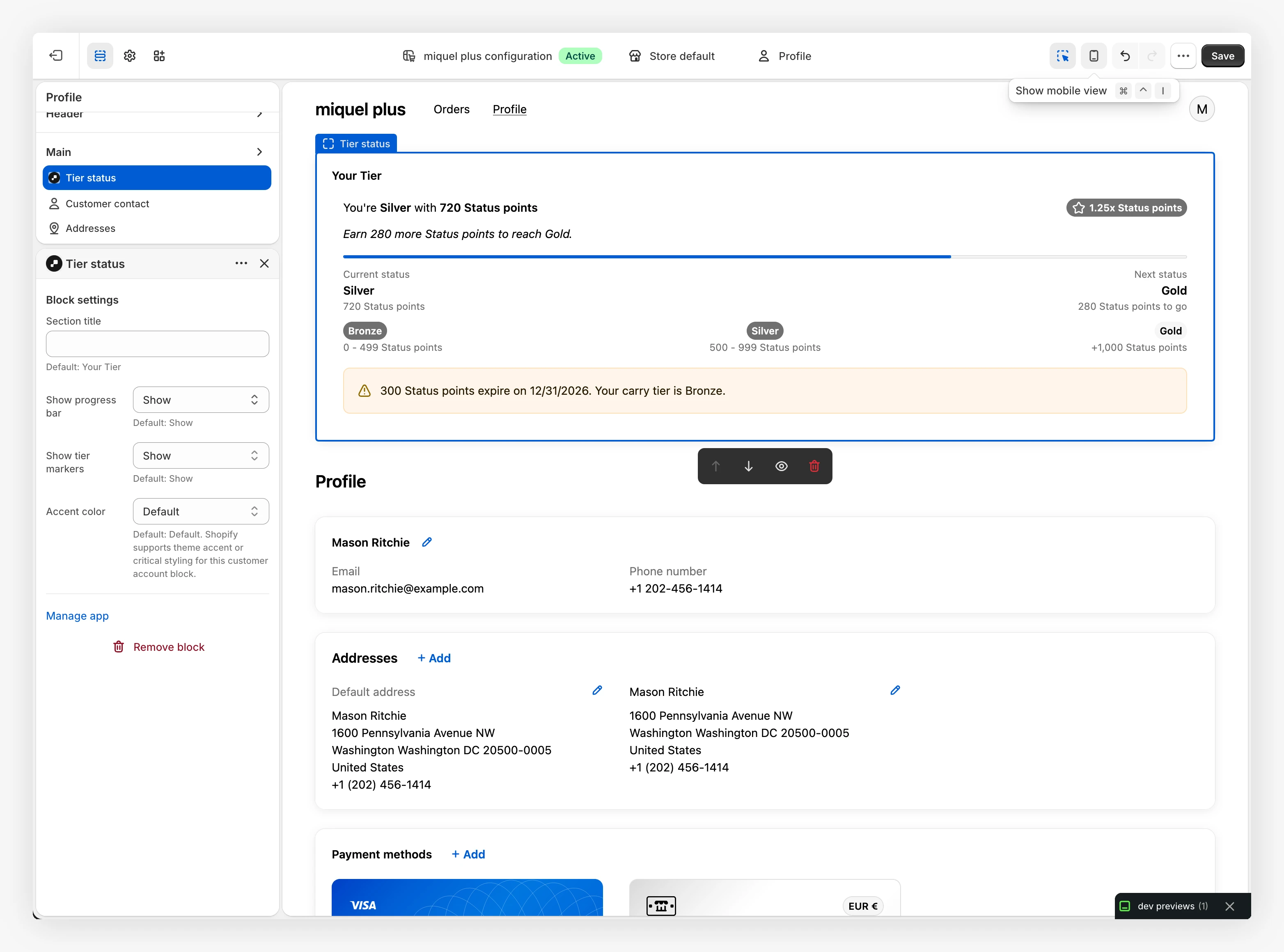
- Earning factor. When a tier applies a factor to points, the block shows the active factor, such as
2x. - Tier-points bar. A visual bar fills up as the customer earns tier points toward the next tier, with a "points to go" label.
- Tier markers. Optional markers along the bar show each tier threshold.
- Top tier message. Customers already on the highest tier see a "You are on the highest available tier" message instead of a target.
- Expiration notice. When tier points expire, the block shows the expiry date and the tier the customer will carry afterward.
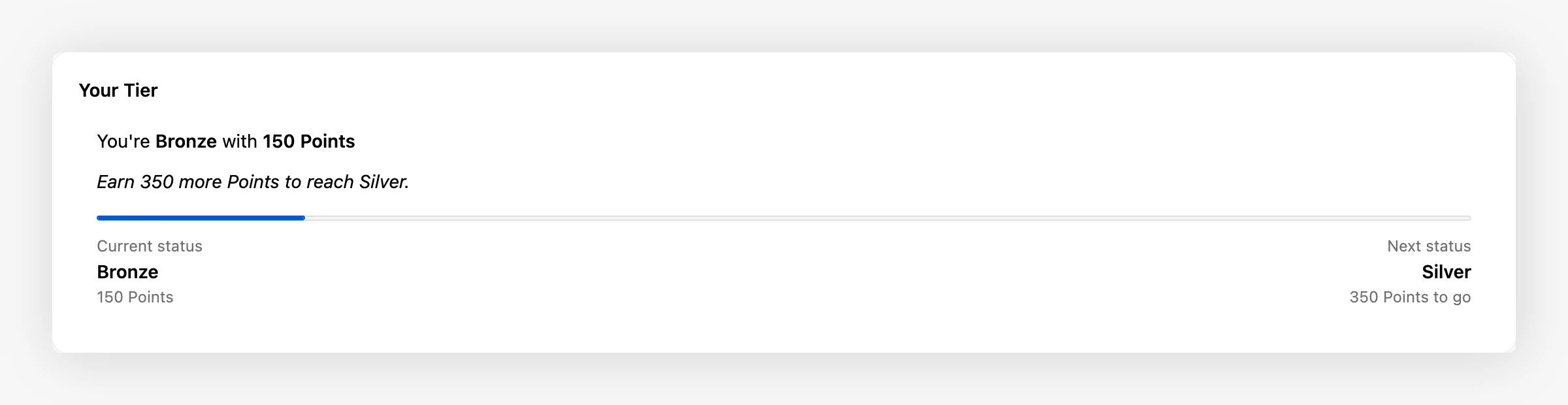
Settings 
From the customer account theme editor, select the Tier Status block to open its settings:
- Section title. The heading shown above the block. Defaults to "Your Tier".
- Show progress bar. Show or hide the progress bar.
- Show tier markers. Show or hide the threshold markers on the bar.
- Accent color. Choose the default theme accent or a critical (attention) tone for the block styling.
How to Set It Up 
Open the customer account editor
In your Shopify admin, go to Settings, Customer accounts and open the customer account page in the theme editor.
Add the block
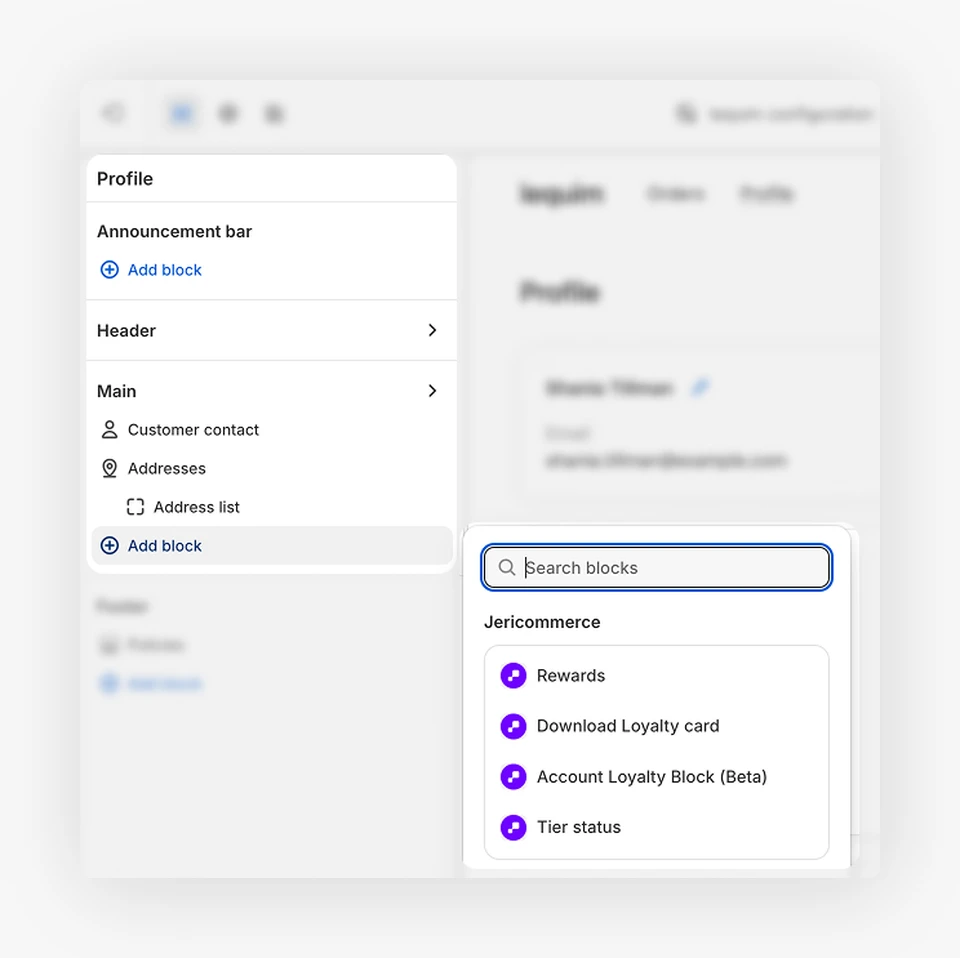
Add a block to the profile page and choose Tier status from the JeriCommerce app. Drag it into the position you prefer.
Adjust the settings
Select the block to set the section title, choose what to show or hide, and pick the accent color that matches your theme.
Save and preview
Save the editor, then open a customer account on your live store to confirm the tier and progress bar show correctly.