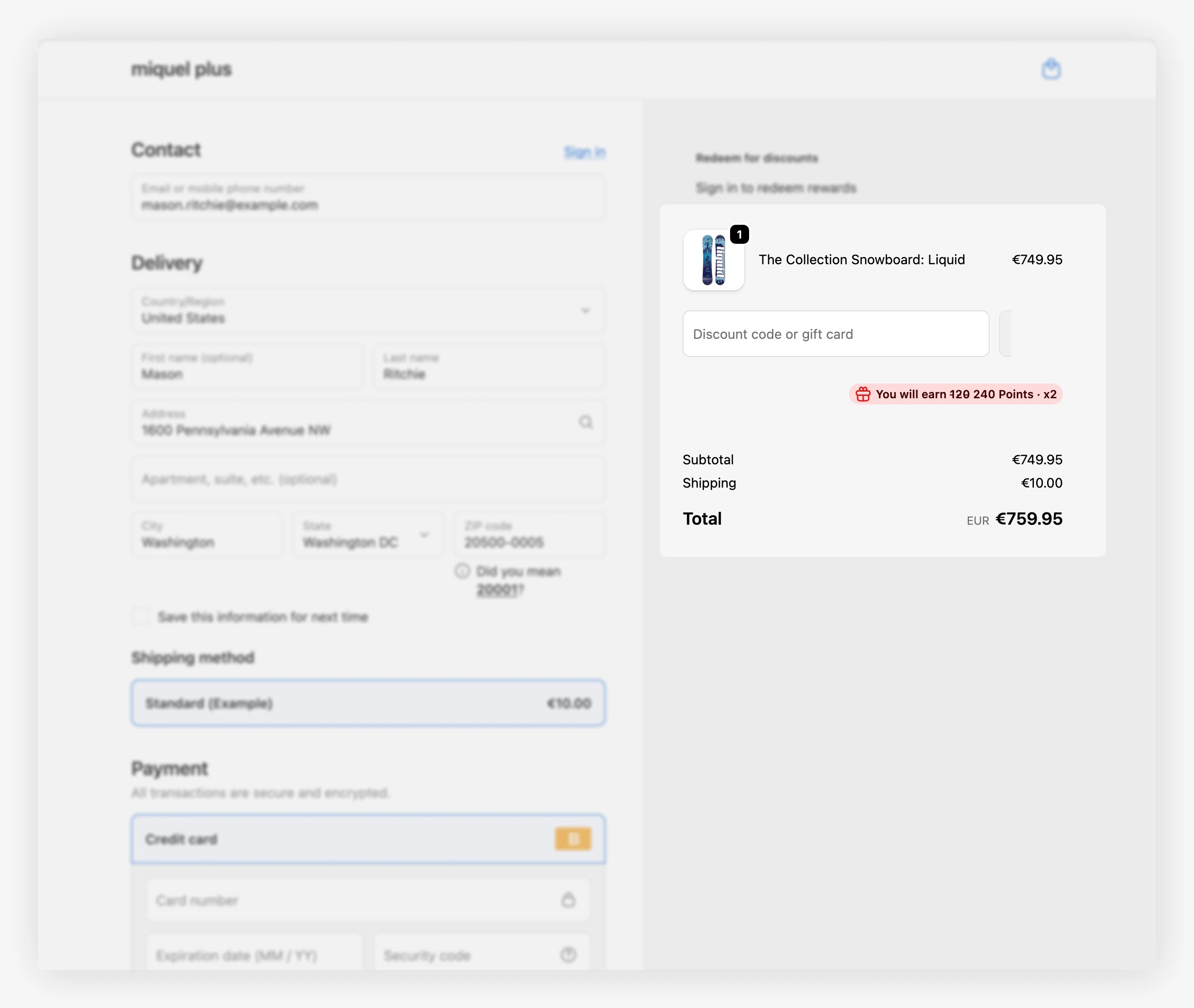
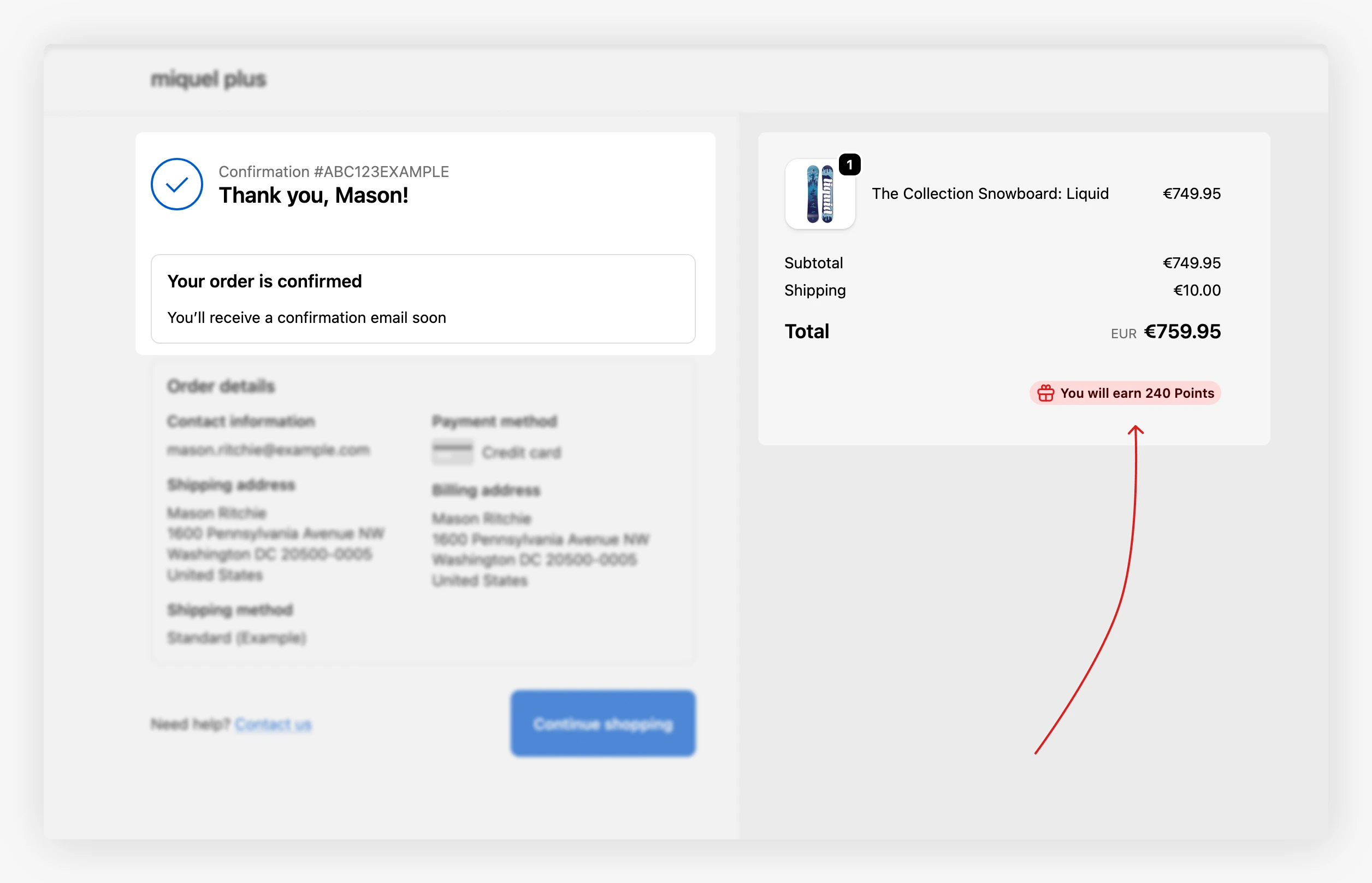
The Checkout Points block shows customers the loyalty points they will earn from their order at two of the highest-intent moments: on the checkout summary, next to the order totals, and again on the thank you page after they pay.
It complements the Points Accumulation blocks, which show the same idea earlier on, on product and cart pages.
Showing this block on the checkout summary requires a Shopify Plus plan, because Shopify limits checkout page blocks to Plus stores. The thank you page placement works on any Shopify plan, so stores without Plus can still show earned points there.
What Customers See 
- Subtotal based. The points total reflects the checkout subtotal and updates as the order changes.
- Last-minute nudge. Showing the reward right at payment reinforces the value of completing the order.
- Order confirmation. Repeating it on the thank you page reminds customers what they just earned.
Boost Campaign Display 
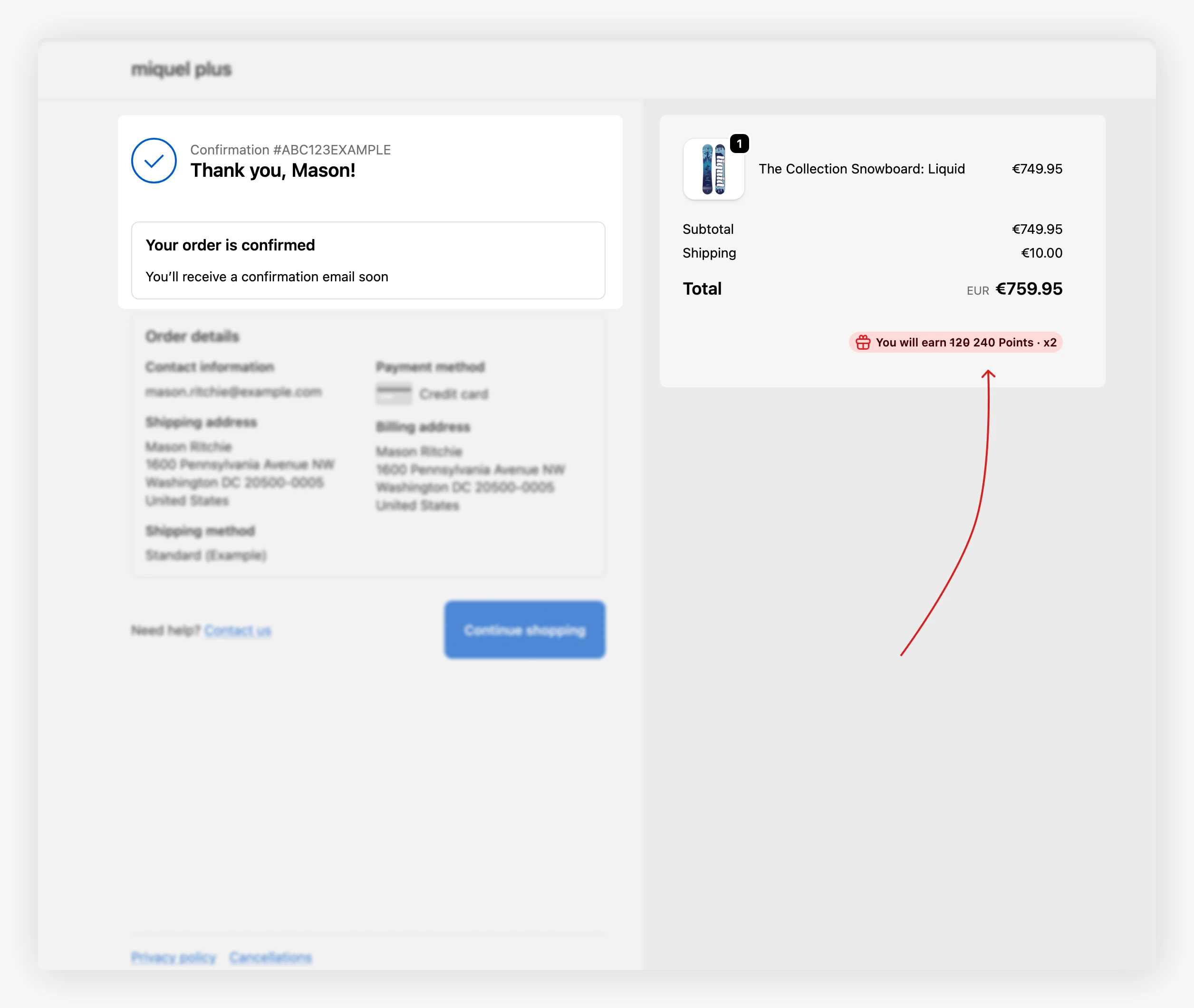
When a Boost Campaign is active for purchase points, this block can show the boosted value.
- Show boost badge. Shows a badge with the active factor, such as
x2. - Show boosted points inline. Replaces the points amount with the base amount followed by the boosted amount.
You can also use these variables in the block text:
| Variable | What it shows |
|---|---|
[boost_multiplier] |
Active boost factor, such as x2. Empty when no boost applies. |
[base_points_amount] |
The pre-boost points amount. Empty when no boost applies. |
Settings 
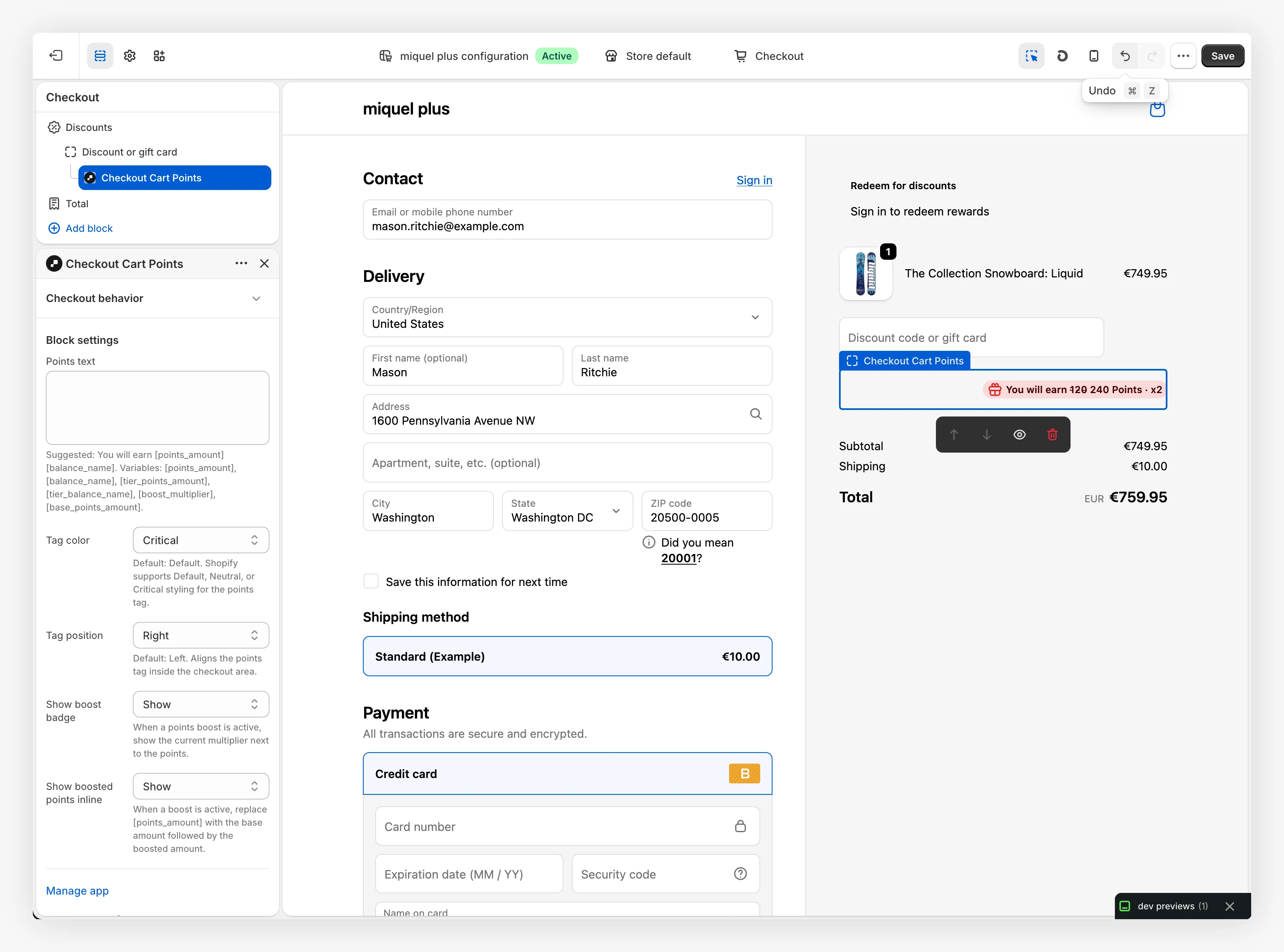
Unlike the product and cart points blocks, this block is added from the Shopify checkout and accounts editor rather than the theme editor. From the editor, you can set:
- Points text. The message shown to the customer, using variables like
[points_amount]and[balance_name]. - Tag color. Default, neutral, or critical styling for the points tag.
- Tag position. Align the points tag to the left or right of the area.
- Boost settings. Show the boost badge and the boosted points inline when a campaign is active.
How to Set It Up 
Open the checkout editor
In your Shopify admin, go to Settings, Checkout and choose Customize on your live checkout to open the checkout and accounts editor.
Add the block
Add the JeriCommerce Checkout Cart Points block to the checkout summary (Shopify Plus only), and to the thank you page if you want it there too (available on any plan). Drag it into the position you prefer.
Adjust the settings
Select the block to edit the points text, tag color and position, and the boost options.
Save and preview
Save the editor and run a test order to confirm the points show on both the checkout summary and the thank you page.