The JeriCommerce widget is a floating button that gives your customers direct access to their rewards, tier and coupons from any page of your online store. No extra pages needed.

Turn on the widget 
Turn on the SDK app embed
Go to Shopify Admin > Online Store > Themes > Customize > App embeds, turn on SDK from the JeriCommerce app and save the theme. This app embed loads the widget and the Storefront SDK on your store.
Set up the widget in JeriCommerce
In JeriCommerce, go to Customize > Widget and webapp. In Widget settings, check Show the widget, choose your options and save. The badge Active on your store confirms that the app embed is on.
Saved settings reach your store within 5 minutes. Each visitor's browser keeps the widget settings for up to 5 minutes, and pages that are already open keep them until they're reloaded.
Widget settings 
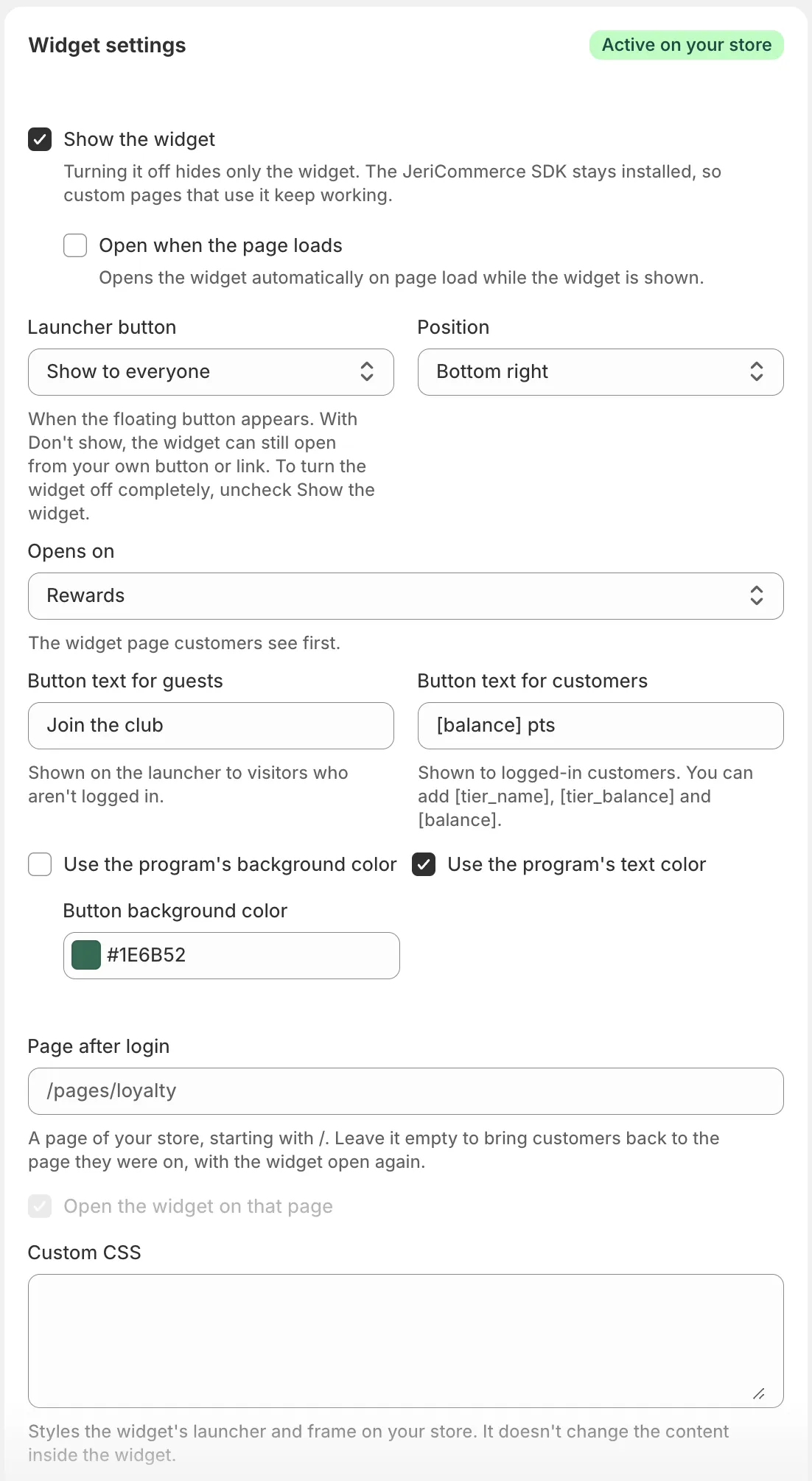
| Setting | What it does |
|---|---|
| Show the widget | Turns the widget on or off. Turning it off hides only the widget. The SDK stays installed, so custom pages that use it keep working |
| Open when the page loads | Opens the widget automatically when a page loads |
| Launcher button | When the floating button appears: Show to everyone, Show to logged-in customers, Show to guests or Don't show |
| Position | Bottom right or Bottom left |
| Opens on | The page customers see first: Program advantages, Profile, Orders, Coupons, Rewards, Earning flows or Referrals. Visitors who are not logged in always see the program advantages |
| Button text for guests | Text of the button for visitors who are not logged in |
| Button text for customers | Text of the button for logged-in customers. You can add [tier_name], [tier_balance] and [balance] |
| Use the program's background color / Use the program's text color | Uses the colors of your web app. Uncheck them to choose a Button background color and Button text color for the widget |
| Page after login | A page of your store, starting with /, where customers land after logging in from the widget. Leave it empty to bring them back to the page they were on, with the widget open again |
| Open the widget on that page | Opens the widget on the Page after login |
| Custom CSS | Styles the widget's button and frame on your store. It doesn't change the content inside the widget |
With Don't show, the floating button never appears, but the widget still opens from your own buttons and links (see Custom Triggers). To turn the widget off completely, uncheck Show the widget.
New programs start with the widget turned off: check Show the widget when you want to show it on your store.
Deep Linking 
Open the widget automatically from emails or SMS by adding a jeri query parameter to any URL on your store.
Open the advantages page
https://www.your-store.com?jeri=advantages
Open the rewards page
https://www.your-store.com?jeri=loyalty/rewards
Custom Triggers 
Open the widget from any button or link on your site using a #jeri fragment. This avoids a page reload.
Open the widget
<a href="#jeri">See your Level</a>
Open a specific page
<a href="#jeri=coupons">Open my coupons</a>
Developers can also open, close, show or hide the widget from JavaScript with the Storefront SDK, for example jeri.widget.open({ page: "rewards" }).
Available Routes 
Use these paths with deep links or custom triggers.
| Path | Description |
|---|---|
check |
Email verification |
profile |
User profile |
orders |
Order history |
coupons |
List of redeemed or assigned coupons |
coupons/:couponSlug/:couponCode |
Specific coupon details |
loyalty |
Main loyalty page (defaults to earning flows) |
loyalty/rewards |
Rewards catalog |
loyalty/rewards/:rewardId |
Specific reward details |
loyalty/earning-flows |
Earning flows |
loyalty/tiers |
VIP tier details page |
advantages |
Program benefits for non-logged-in visitors |
referrals |
Referral program dashboard |