The Rewards block turns the Shopify customer account page into a place where customers can actually spend their points. They see their balance, browse available rewards, redeem eligible rewards, and apply the resulting discount to their cart, all without leaving their account.
It pairs naturally with the Account Tier Status block, which shows the same customers their VIP progress.
This block lives on the Shopify customer account profile page, so your store needs New Customer Accounts turned on in Shopify. It appears in the customer account theme editor under the JeriCommerce app.
What Customers See 
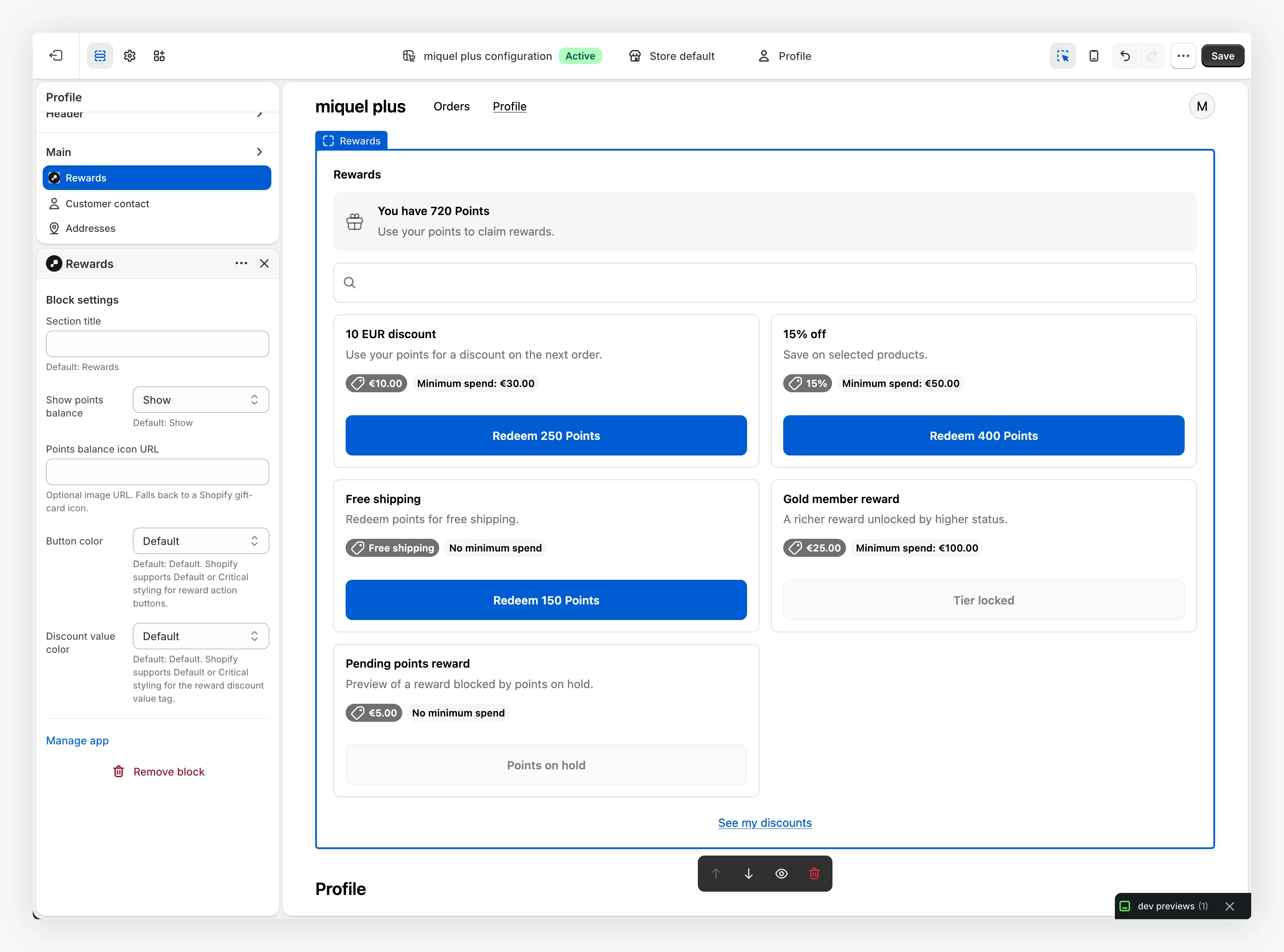
- Points balance. The customer's current points and a short prompt to spend them. Customers with no points see an "earn points to unlock new rewards" message instead.
- Reward list with search. Every available reward, with a search box so customers can find one quickly.
- Clear states. Each reward shows whether it is claimable, locked (not enough points), tier locked (a higher tier is required), or unavailable, plus any minimum spend.
- My discounts. A "See my discounts" view where every reward the customer has ever redeemed stays available to apply again later.
- Clean translated text. Reward names and descriptions are shown as plain, readable text in every supported language, including Bulgarian.
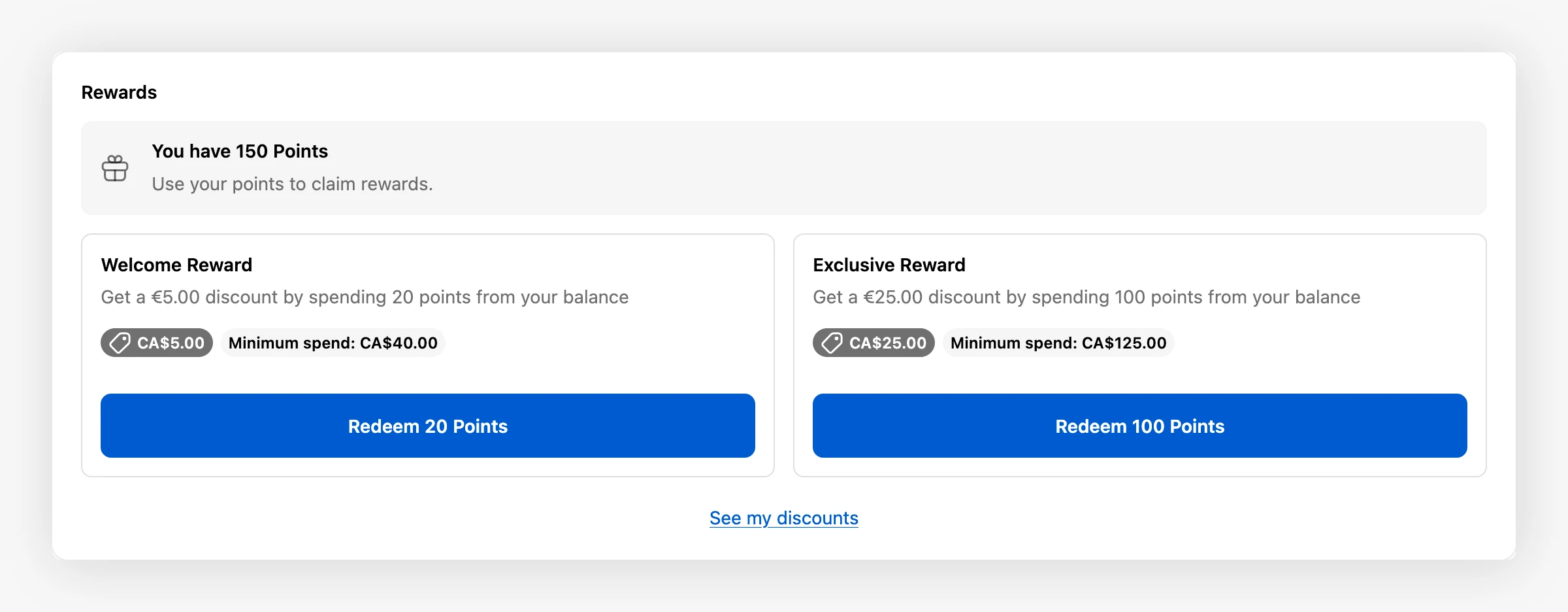
How Reward Redemption Works 
Redeeming a reward takes the customer from points to a usable discount in a few steps.
Pick a reward
The customer opens the Rewards block, optionally searches, and taps a reward marked as claimable. Locked and tier locked rewards cannot be opened until the customer qualifies.
Confirm the cost
A confirmation window shows what the reward is worth and how many points it costs. For example, a fixed reward might ask, "Are you sure you want to spend 20 points for this CA$5.00 reward?" Free rewards show "Redeem for free" instead. The customer taps to confirm, or cancels.
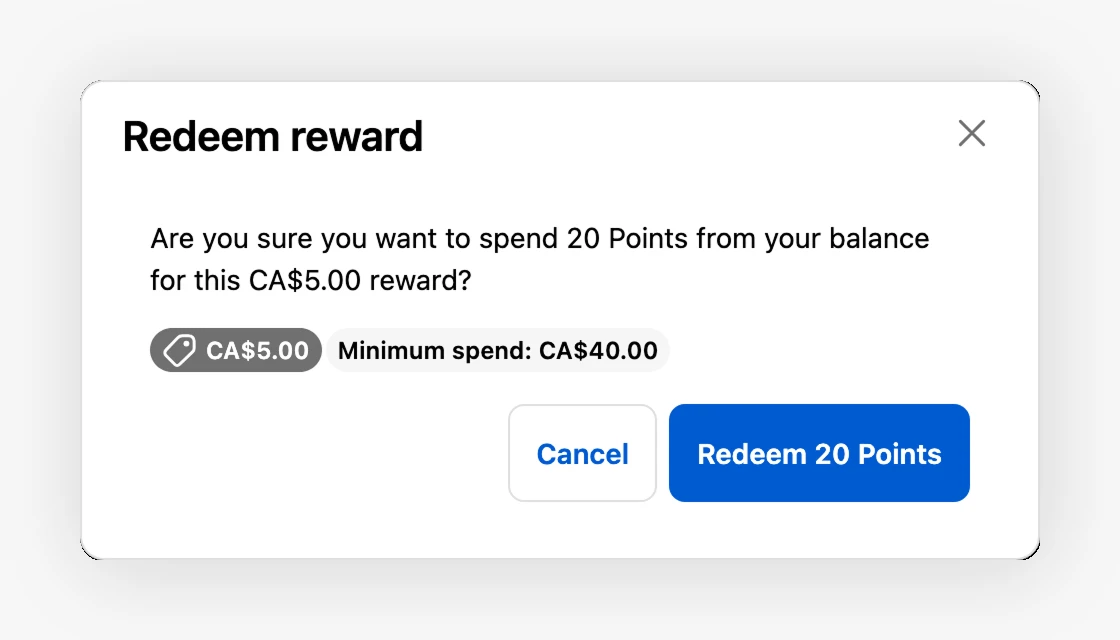
Get the discount code
Once confirmed, the points are spent and a discount code is created for the customer. The success window shows the code with a copy button, and an Apply online now button that opens the store with the discount already applied.
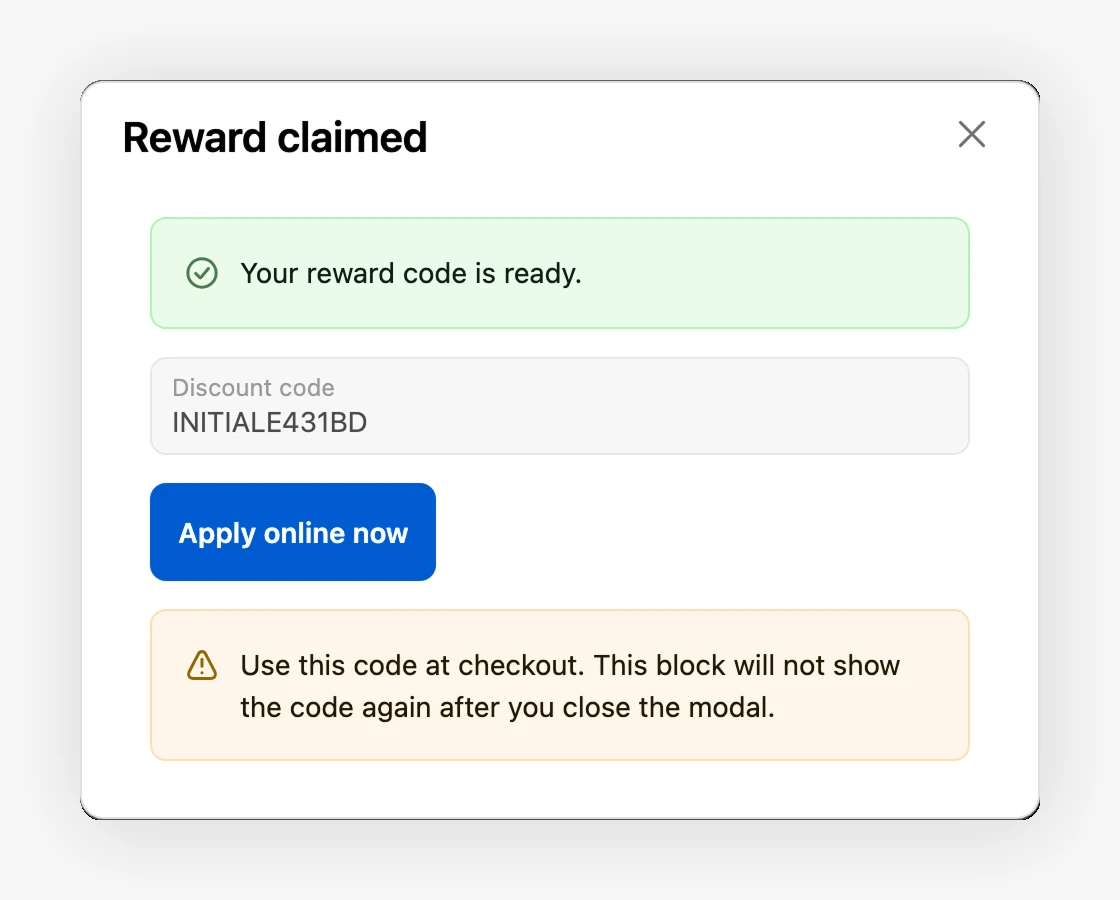
Customers can also redeem Points as cash rewards. This block has no cart context to cap redemption by cart contents.
The success window shows the discount code only once for security. Customers do not need to write it down, though. Every redeemed reward is saved to their account and stays available under See my discounts, described below.
Redeemed Rewards Stay Available 
This is the part worth highlighting to customers: a redeemed reward is never lost. Even after they close the success window, the discount lives in their account and can be applied at any time.
From the See my discounts view inside the Rewards block, the customer sees every code they own. Each one shows:
- The reward and its value. The reward name, description, and discount value.
- Expiration. An "Expires on" date, or "No expiration" when the reward never lapses.
- Status. Available codes are ready to use, Applied codes have already been used on an order, and Expired codes are past their date. Available codes appear first.
For any available code, an Apply now button opens the store with the discount already applied to the cart, so the customer can head straight to checkout. There is no need to copy the code or type it in manually.
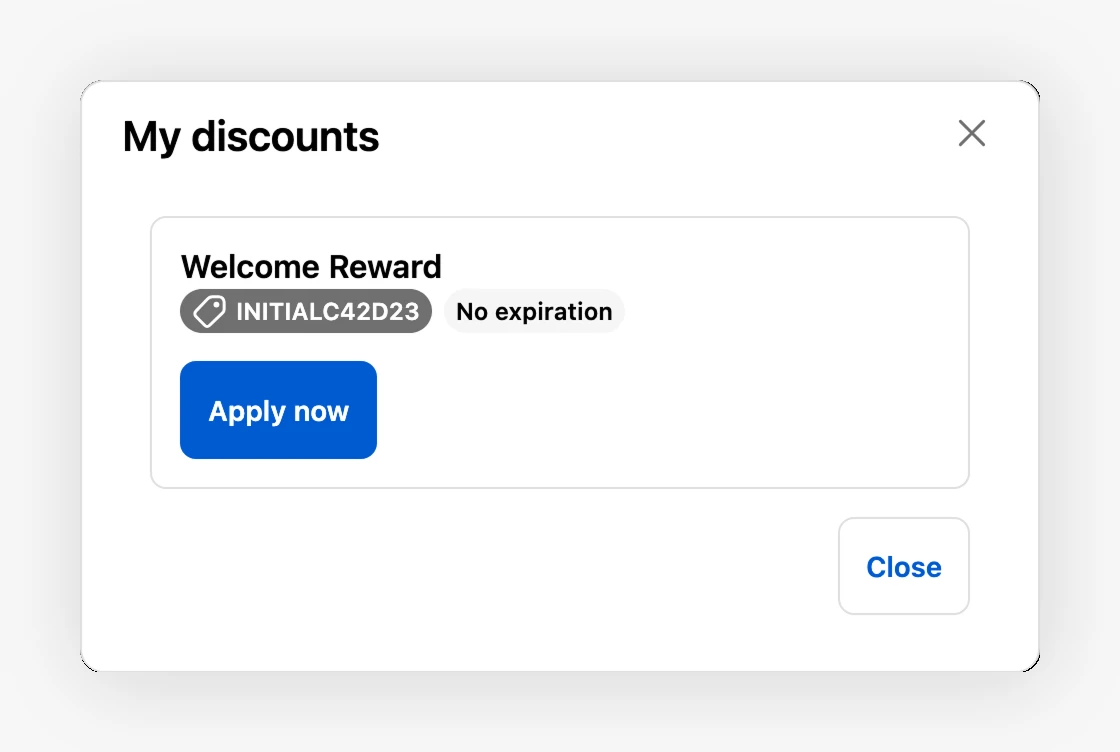
Settings 
From the customer account theme editor, select the Rewards block to open its settings:
- Section title. The heading shown above the block. Defaults to "Rewards".
- Show points balance. Show or hide the points balance card at the top.
- Points balance icon URL. An optional image URL for the balance icon. Falls back to a Shopify gift card icon.
- Button color. Default or critical styling for the reward action buttons.
- Discount value color. Default or critical styling for the reward discount value tag.
How to Set It Up 
Open the customer account editor
In your Shopify admin, go to Settings, Customer accounts and open the customer account page in the theme editor.
Add the block
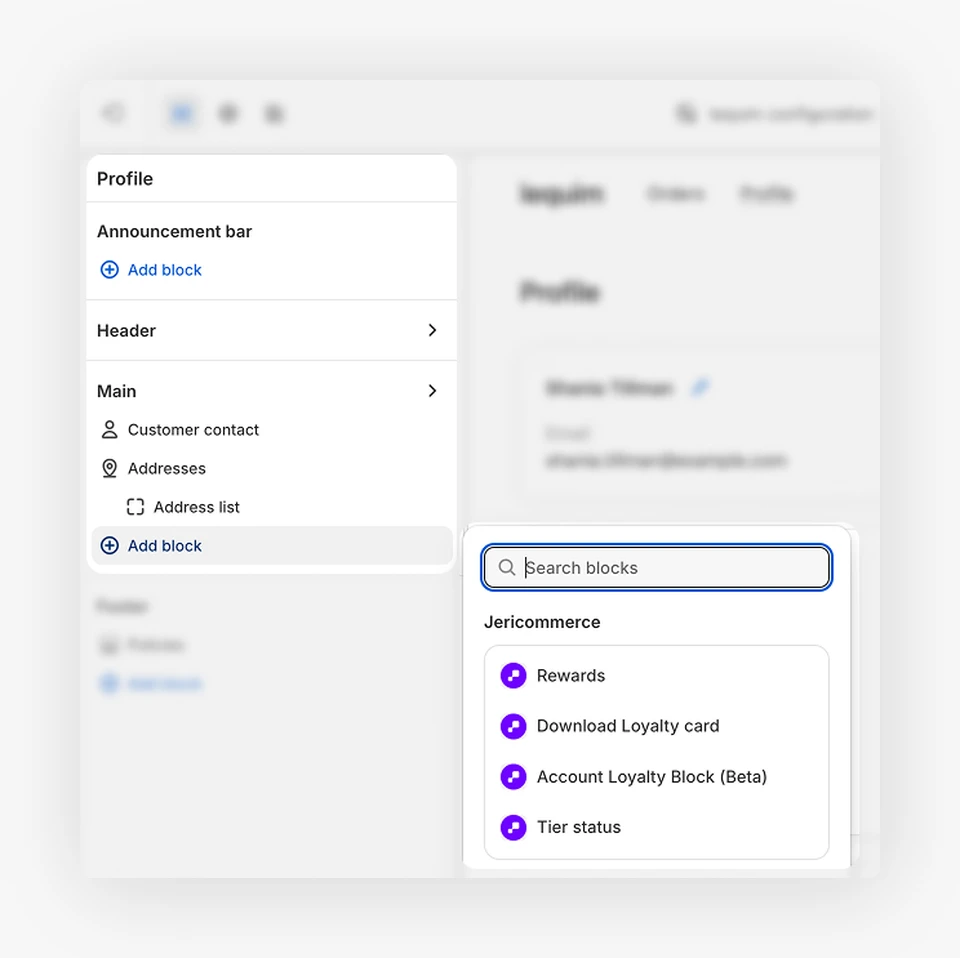
Add a block to the profile page and choose Rewards from the JeriCommerce app. Drag it into the position you prefer.
Adjust the settings
Select the block to set the section title, decide whether to show the points balance, and pick the colors that match your theme.
Save and test the flow
Save the editor, then open a customer account on your live store. Redeem a test reward end to end, close the success window, and confirm the code reappears under See my discounts with a working Apply now button.