Every API request must include your API key in the api-key header. If the key is missing or does not belong to the program in the URL, the API answers 403.
Each key belongs to one program. You can create several keys, for example one per system that connects to JeriCommerce, and delete any of them without affecting the others.
Get API Key 
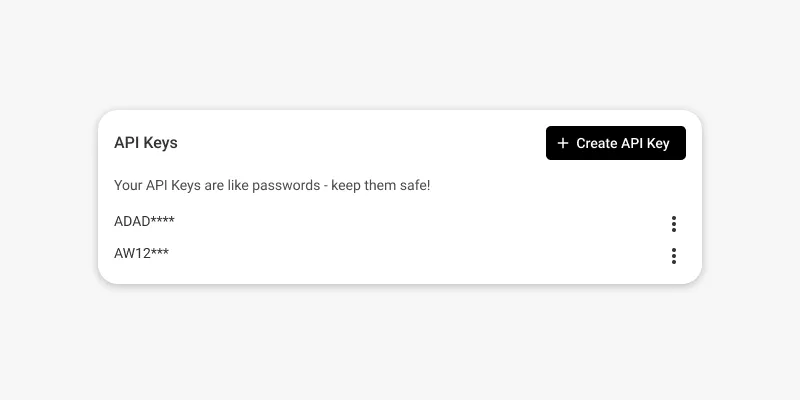
To get an API key, go to the admin area, open Settings > Technical > API Keys, and click Add API key.
Enter a name in API key name and click Generate. Copy the generated token before closing the dialog. It is only shown at that moment.
Include Token on API Requests 
To access the API endpoints, include the API key obtained in the previous step as the value of the api-key header.
Here is an example using cURL that reads a customer:
curl --request GET \
  --url https://api.jericommerce.com/v1/programs/{program_slug}/customers/customer@example.com \
  --header 'api-key: {{ apiKey }}'
Keep the key on your server. Anyone with it can change your customers' data, so never put it in a website, an app, or any code that runs on the customer's device.
The Balance preview and List rewards endpoints are public and work without a key.