Use this pattern for coffee shops, restaurants, salons, and other businesses where customers expect a simple promise such as buy 10, get 1 free.
JeriCommerce does not have a separate stamp-card counter. Model one stamp as one spendable point, then use a 10-point reward for the free item. A purchase percentage only approximates one point per visit: if prices vary, a visit can earn more or fewer points. Do not use VIP tiers to represent stamps because tier points do not reset when a customer redeems a reward.
Before starting, enable Loyalty and Rewards in Settings > Integrations > JeriCommerce. The spendable points balance is the only stamp counter in this setup; do not configure tiers as the recurring card counter.
Decide what one stamp means
Choose whether one purchase earns one stamp or whether the stamp depends on spend. For a fixed-price €4 coffee, a 25% purchase ratio makes €4 earn 1 point with nearest-integer rounding, which you can present as one stamp. If prices vary, test representative order totals and explain that the card is spend-based.
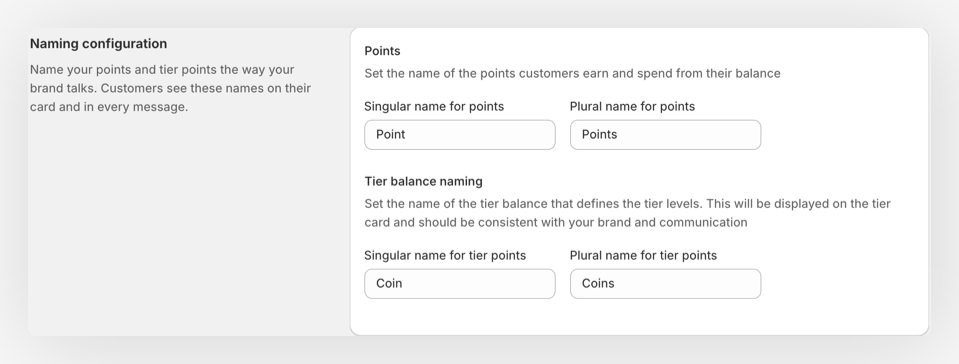
Rename points as stamps (optional)
Go to Settings > Loyalty and change Singular name for points to Stamp and Plural name for points to Stamps. Click Save. This changes the visible label only; JeriCommerce continues to calculate and redeem the spendable balance as points.
Set the earning rule
Go to Loyalty > Ways to earn > Points for purchases. Set the ratio and rounding so the normal purchase earns the intended number of stamps.
Create the free-item reward
Go to Loyalty > Ways to redeem, click Add redemption option, and choose Fixed reward. Set its cost to 10 points and name it clearly, such as Free coffee. In Associated discounts, create a Shopify 100% product discount scoped only to the free item. This lets the accumulated points unlock the item without requiring another qualifying purchase.
Do not use Buy X get Y for this accumulated-stamp flow unless you intentionally want the customer to buy X again in the current cart. Shopify evaluates that qualifying quantity on the current order, not across the previous visits that earned the stamps.
Read Discount Types before choosing the discount. Product targeting may require opening JeriCommerce inside Shopify Admin.
Configure the reset correctly
When the customer redeems the free item, JeriCommerce deducts the 10-point reward cost from the spendable balance. That deduction is the reset for the next card.
After the redemption, the next qualifying purchase starts the new card at 1 spendable point.
Do not run Decrease Balance after the reward redemption to subtract the same points again. That would double-count the reset. Use Decrease Balance only for a separate manual correction.
Add the card to the phone
Make the reward and progress easy to find in the Shopify Loyalty Hub and add a rewards link to the wallet pass. Customers do not need a separate app.
Test the tenth purchase
Use a staff account to earn ten stamps, confirm that Free coffee becomes available, redeem it at Shopify POS, and verify that the spendable balance starts the next card at zero.
With variable-price products, do not promise exactly one stamp per visit until you have tested the earning ratio and rounding with representative orders.
The customer journey is complete when every visit adds the expected stamp, the tenth visit unlocks one clearly scoped free item, and staff can redeem it in one checkout step.