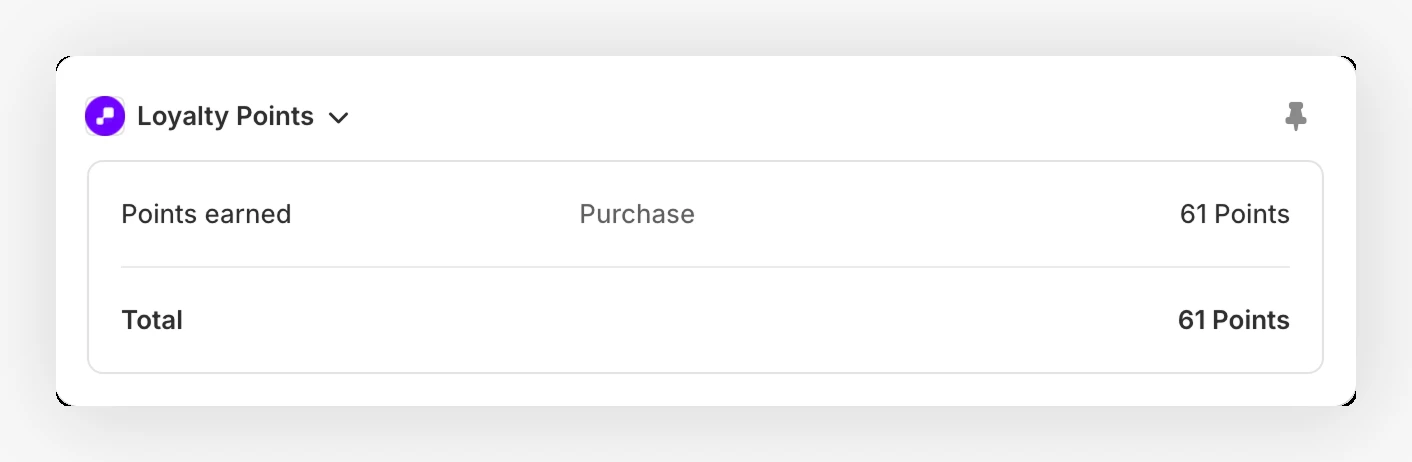
When your team reviews an order in Shopify, they can now see the loyalty points tied to that order without opening JeriCommerce. The Loyalty Points block shows what the order earned, what refunds removed, and the final net point total.
Use it when you are checking a support ticket, reviewing a refund, or confirming that a points boost applied correctly.
What the Block Shows 
Open an order in Shopify admin and look for the JeriCommerce Loyalty Points block.
The block can show:
- Points earned for the original purchase
- Boost information when a points boost campaign applied
- Base points before the boost, when boost details are available
- Returns/refunds points removed from returned or refunded items
- Total net points after earnings and refunds
If the order is still being processed, the block shows Earning pending. If the order has no customer or the customer is not enrolled in your loyalty program, it shows No loyalty profile.
How to Use It 
Open the Shopify order
In Shopify admin, go to Orders and open the order you want to review.
Find Loyalty Points
Look for the JeriCommerce Loyalty Points block on the order details page.
Review the point breakdown
Check Points earned, Boost, Returns/refunds, and Total to understand how the final point balance was calculated.
For the rules behind purchase points, returns, and boost handling, see Credit Points for Purchases. If the block shows the points landed on the wrong person, you can change the order's customer and the points follow.
Your support team can now confirm order-level loyalty points directly from Shopify.