Location-based notifications help customers open their loyalty card when they are near one of your physical stores. They work with Apple Wallet and Google Wallet passes, with a few platform differences to keep in mind. Google Wallet location notifications are less customizable: Google supports GPS-based store locations, but not iBeacon devices or a custom on-screen message. Google Wallet shows its default Nearby message.
How They Work 
These notifications are different from regular push notifications. They are designed to make the wallet pass easy to open when the customer is nearby.
- GPS-based store locations can target Apple Wallet and Google Wallet
- iBeacon devices only target Apple Wallet
- Apple Wallet can show the custom message you write in the campaign
- Google Wallet shows the default Nearby message
- Apple Wallet notifications appear when the customer is about 70 to 80 meters away from the location when Precise Location is turned on
- Once the campaign is on the device, Apple Wallet can trigger the notification without an internet connection
Setting Up Location Campaigns 
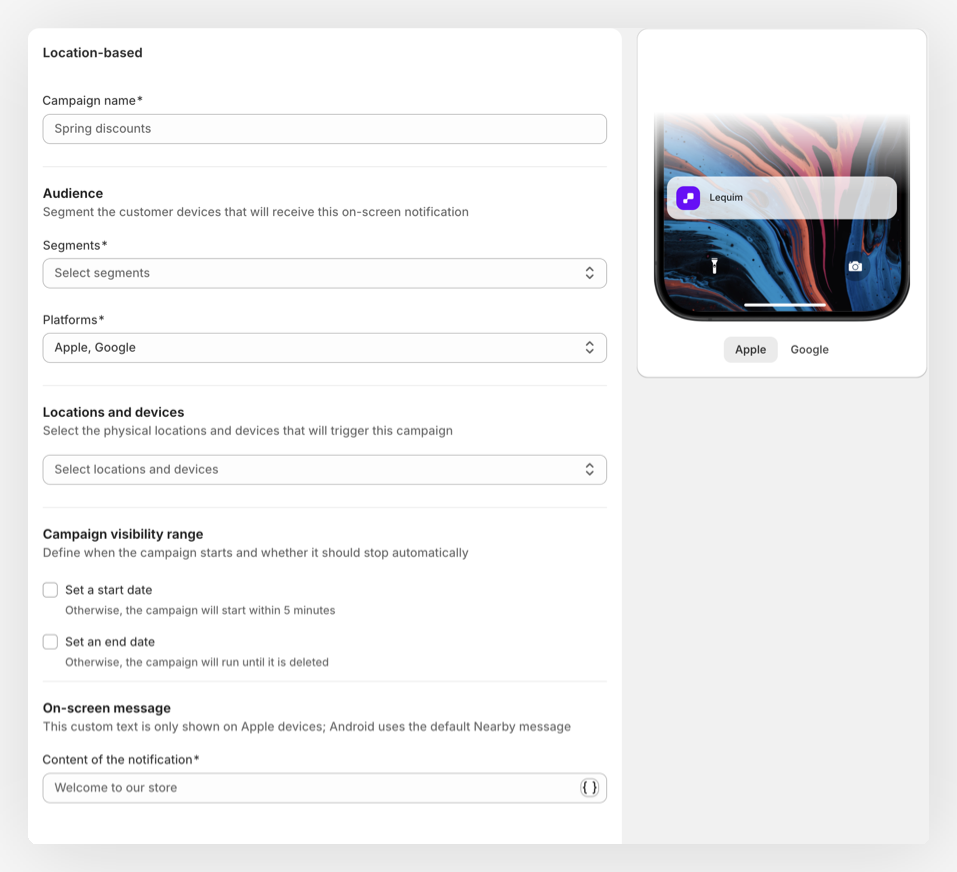
Go to Campaigns → Location-based and click Create campaign.
Create your locations
Add the physical locations where you want notifications to trigger. For each location, write the text you want customers to see when they're nearby.
Group locations into campaigns
Organize your locations into campaigns to target specific customer segments. GPS locations work for Apple and Google. iBeacon devices are marked Apple-only in the selector when Google is included.
When editing a campaign, its selected audience is retained unless you change it. For active ongoing campaigns with no end date, JeriCommerce rebuilds customer assignments after the update so memberships are not lost.
Apple Wallet combines the locations and beacons assigned across all of a customer's location campaigns when it builds the pass. Apple's platform limits still apply.
Choose your audience
Pick which customer segments should receive each location-based campaign. You can target the built-in JeriCommerce segments or choose All customers. Choosing multiple JeriCommerce segments combines their audiences, so a customer only needs to match one selected segment.
Pick the platforms
Choose Apple Wallet, Google Wallet, or both. New location campaigns select both platforms by default.
Write your message
Write the message Apple Wallet customers should see. Google Wallet customers see the standard Nearby message from Google Wallet.
Use location-based notifications to promote in-store exclusives, show promo codes near your shops, or create engagement games that drive foot traffic.
Platform Differences 
| Feature | Apple Wallet | Google Wallet |
|---|---|---|
| GPS store locations | Yes | Yes |
| iBeacon devices | Yes | No |
| Custom on-screen message | Yes | No, Google shows Nearby |
| Approximate trigger range | About 70 to 80 meters with Precise Location | Controlled by Google Wallet |
| Location count | No JeriCommerce campaign limit | Google accepts up to 10 nearby locations per pass |
If you select more than 10 GPS locations, prioritize the stores that matter most for Google Wallet customers. Google accepts up to 10 nearby locations on each pass.
Troubleshooting 
Why isn't the location notification showing up?
There are a few things to check:
- Automatic Updates must be turned on. Open the wallet pass, tap the three dots or info icon at the top, and make sure Automatic Updates is on.
- Suggest on Lock Screen must be turned on. In the same settings area, look for Suggest on Lock Screen and make sure it is on.
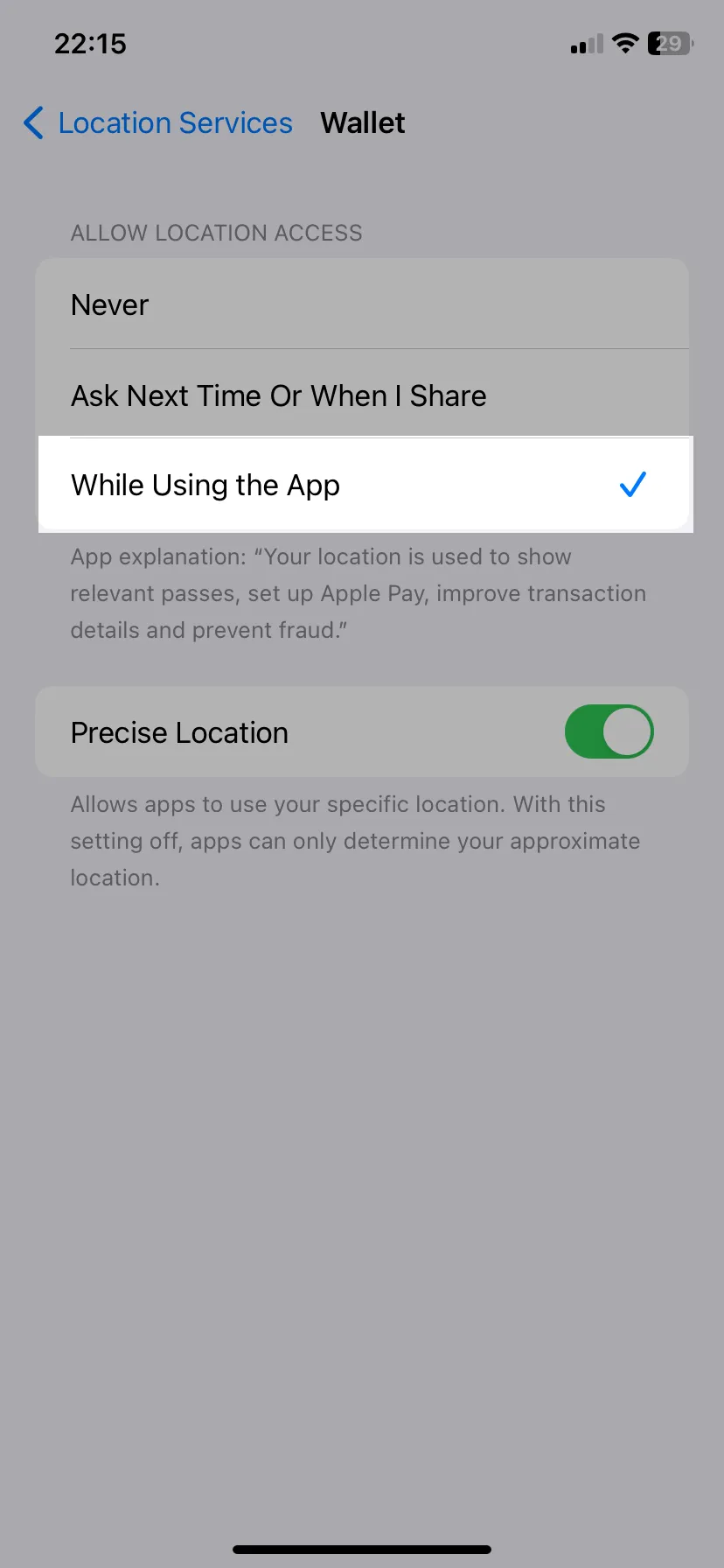
- Location access for Wallet must be allowed. Go to the device's Settings > Privacy & Security > Location Services > Wallet and make sure location access is allowed.
Why isn't the Android notification showing up?
Check that the campaign includes Google Wallet and uses GPS locations, not iBeacon devices. Google Wallet also limits pass notifications to 3 per customer in 24 hours, so a customer who already received 3 wallet notifications may not see another one until the next day.
What happens if the customer doesn't have internet access?
Apple Wallet can trigger location notifications without an internet connection after the campaign is on the device. Google Wallet behavior is controlled by Google Wallet, so treat Android delivery as best effort when the device is offline.