Customer data is one of the most valuable assets your loyalty program collects. This earning flow rewards customers with points the first time they fill in the profile fields you choose, helping you grow a richer database for personalization, segmentation, and campaigns.
Go to Loyalty → Ways to earn → Complete customer profile to turn it on.
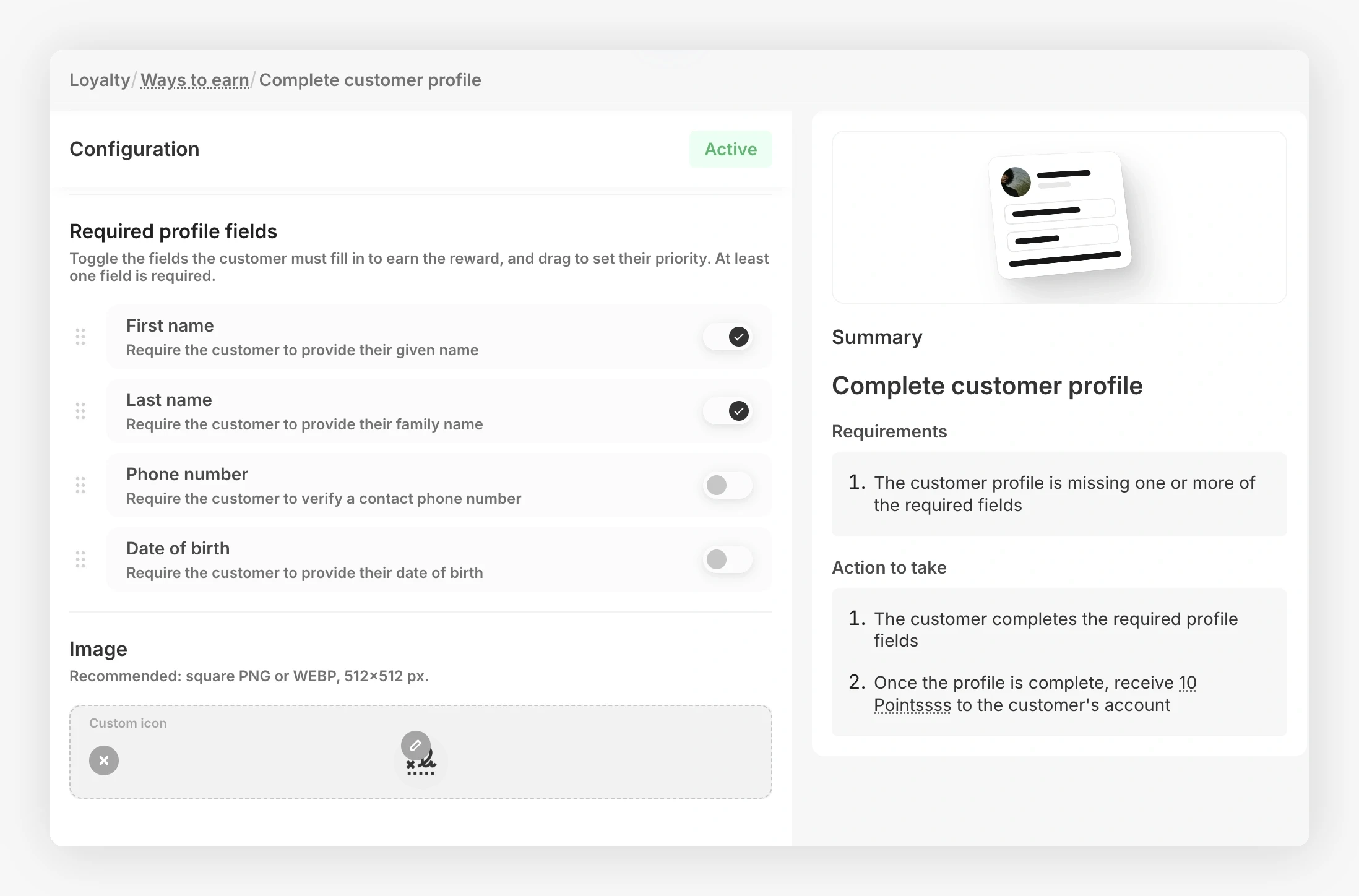
How the Earning Works 
You pick which profile fields the customer has to fill in, and how many points they get. When all of those fields have a value on the customer's profile, JeriCommerce automatically credits the points.
Choose the required fields
Pick one or more of the following profile fields. The customer has to fill in all of the ones you choose to earn the points.
- First name
- Last name
- Phone
- Birthday
For the phone field, the country calling code is preselected from the customer's device time zone. The customer can change the country before entering their number.
Set the point amount
Choose how many points the customer receives when they complete the profile. Points are awarded once per customer.
Customer fills in their profile
The customer opens the Complete your profile card from their wallet web app, fills in the missing fields, and saves. The card has a points tag so customers know what they will earn.
Points are credited
As soon as the saved profile has values for every required field, JeriCommerce credits the points to the customer's balance and marks the flow as completed for that customer.
An initial customer import does not count as the customer completing their profile, so it does not trigger this earning flow.
Points are awarded only once per customer. If you later remove a field value or add new required fields, the customer keeps the points but is not awarded again.
What the Customer Sees 
From the customer's wallet, the flow takes three short steps.
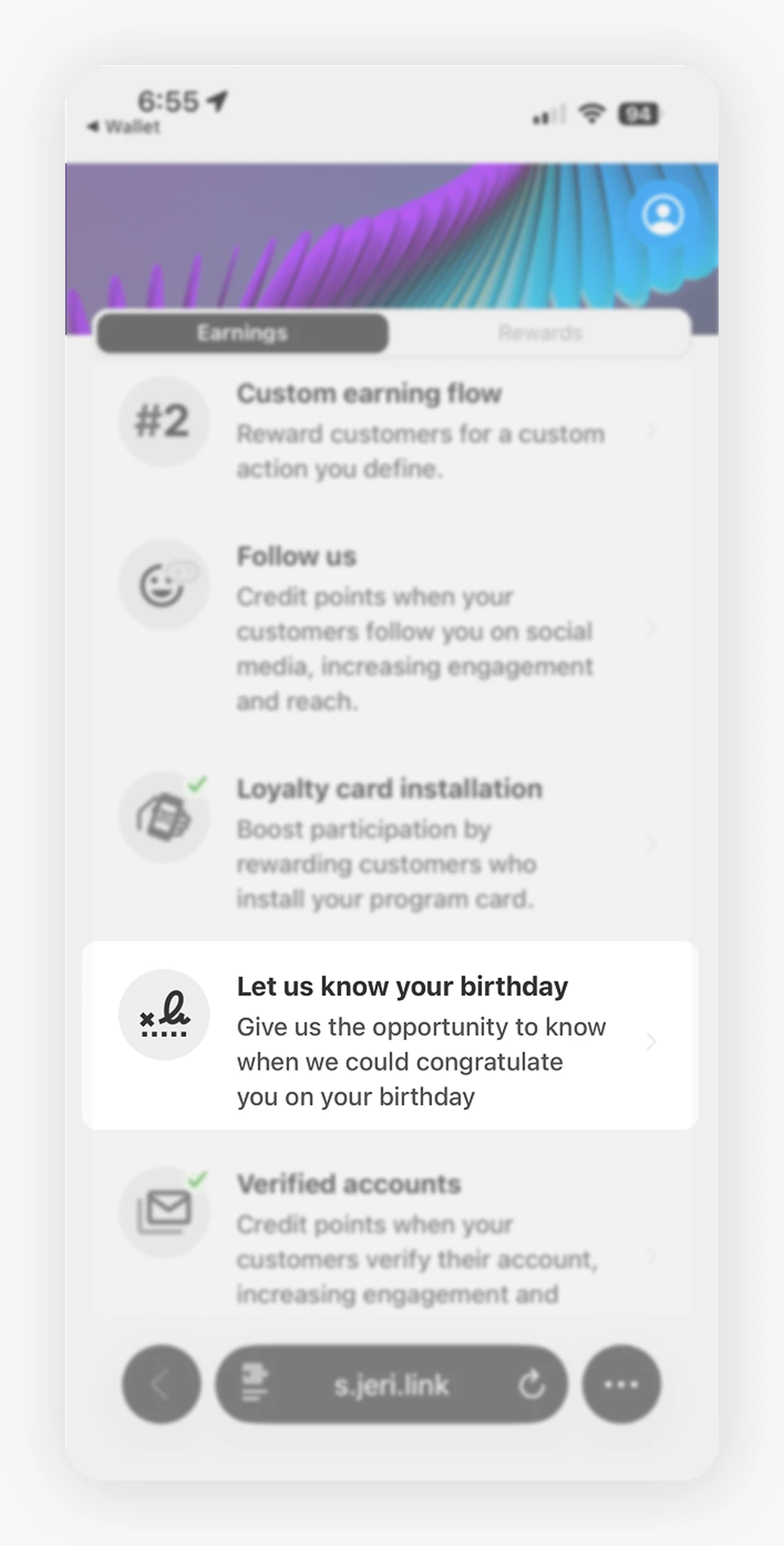
1. The earning flow appears in the Earnings list. The card shows the title you set and the points value, so customers know what they will earn before tapping.
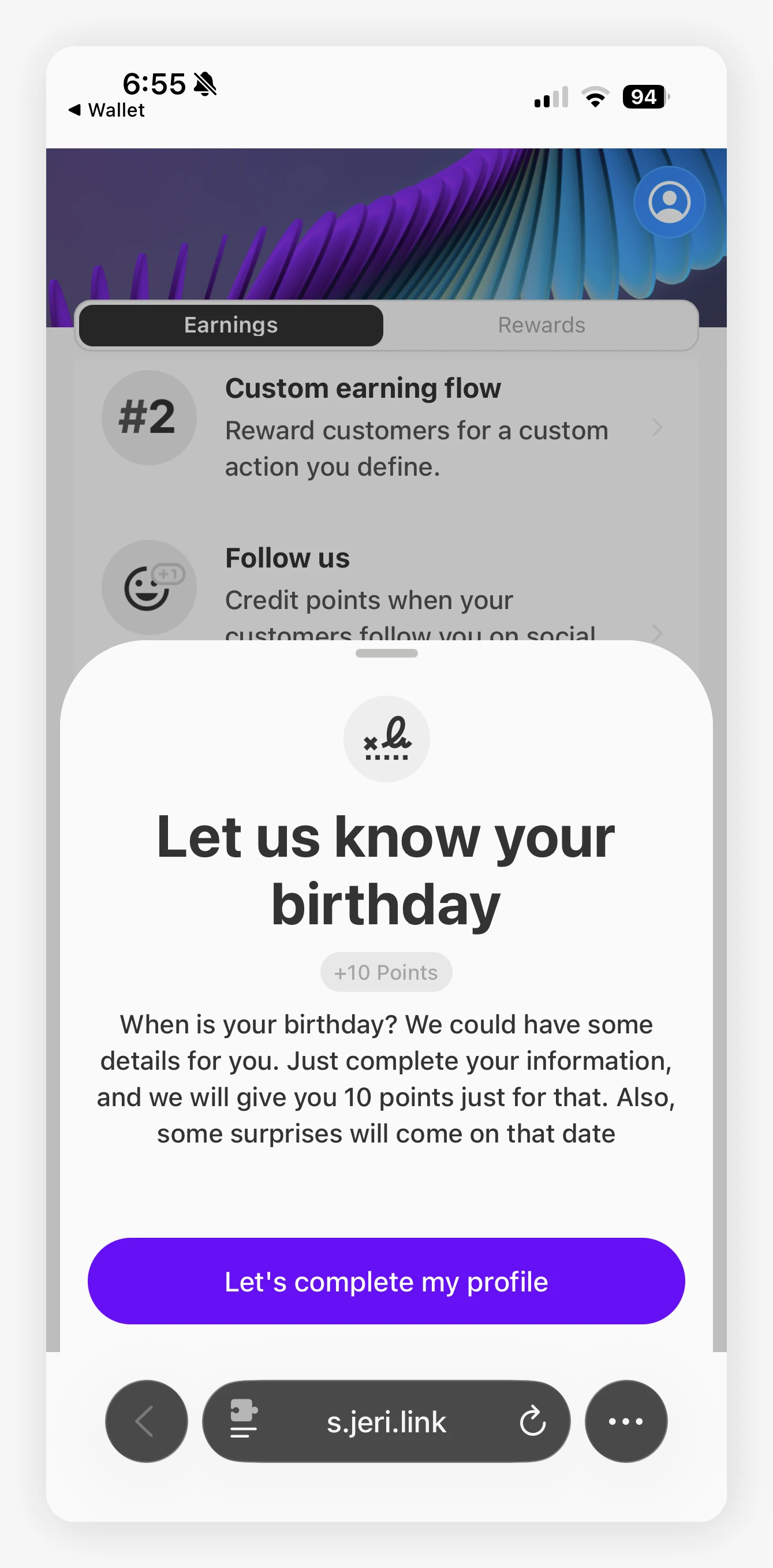
2. Tapping the card opens a preview with a call to action. The customer sees a short description, the points reward, and a button to start completing their profile.
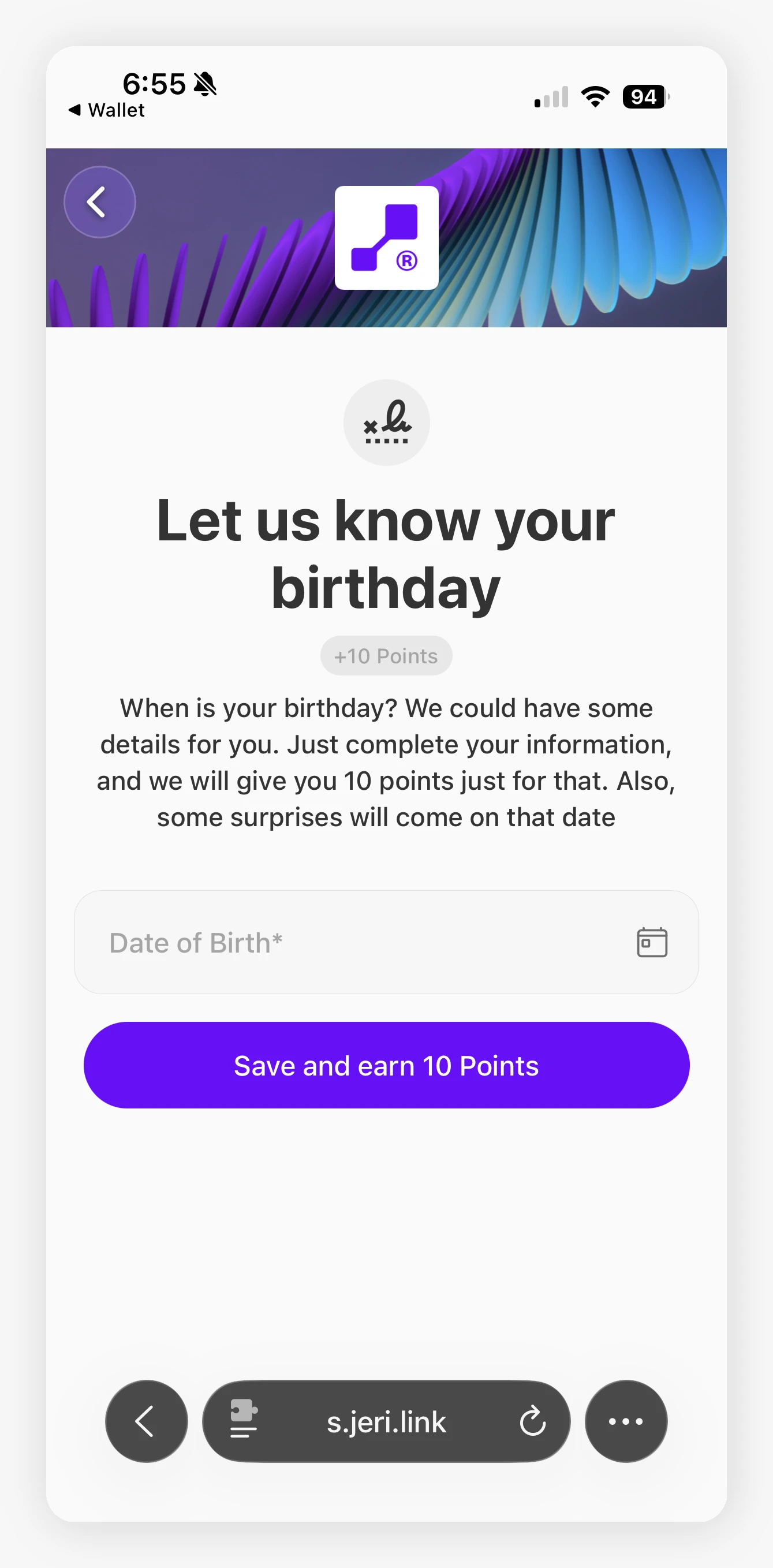
3. The customer fills in the profile fields and saves. Only the fields you marked as required are shown. After saving, the points are credited and the customer sees a success confirmation.
Use this flow alongside the Welcome customer flow to encourage customers to both confirm their account and complete their profile, building a higher-quality customer database from day one.
Where the Data Goes 
The fields collected through this flow update the customer's record in JeriCommerce. If your store is connected to Shopify, the synced fields are also written back to the Shopify customer, so you can use them in Shopify segments, Klaviyo flows, and email campaigns.
Example 
You set this flow to 50 points and require First name, Last name, and Birthday.
- A customer signed up with only their email and last name
- They tap the Complete your profile card in their wallet, fill in first name and birthday, and save
- JeriCommerce credits 50 points to their balance
- The customer cannot earn these points again