Click any row in the customer list to open their profile. This is where you see everything about a customer's loyalty journey — their balance, activity history, notification preferences, and quick actions.
Summary 
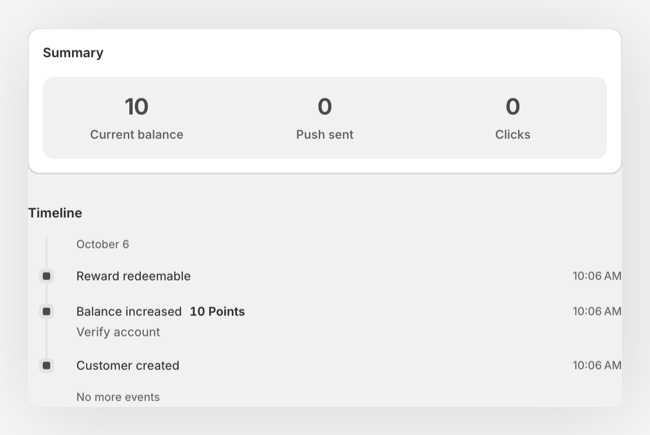
The Summary panel at the top shows three metrics:
| Card | What it shows |
|---|---|
| Current balance | The customer's current loyalty points |
| Push sent | Total wallet notifications sent to this customer |
| Clicks | Combined Apple and Google wallet pass taps |
Customer Information 
The Customer details panel sits beside the summary and timeline:
| Field | Description |
|---|---|
| Name | First and last name |
| Email address used to register, with a small inline chip showing whether it's verified (green) or unverified (gray) | |
| Phone | Phone number (only shown if available) |
| Language | The customer's preferred language, set automatically from their browser the first time they open the loyalty app |
| Birthday | Customer's date of birth (only shown if available) |
| Tier | Current VIP tier name, along with the customer's balance in tier points and the unit name you set for that tier |
| Next cycle | The date the customer's tier will be recalculated, when VIP tiers are turned on with a recalculation cycle |
| Created | A chip showing the date the customer joined your program plus where they came from: Shopify, JeriCommerce, the API, or an initial sync. Hover the chip to see the exact date and time. |
When a customer enters or edits their phone number in the loyalty app, the country calling code is preselected from their device time zone. They can choose a different country manually.
Platform Passes 
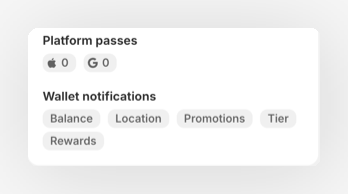
Shows how many wallet passes the customer has installed on each platform — Apple Wallet and Google Wallet. This tells you which devices the customer is using and whether they can receive push notifications.
Notification Preferences 
Each customer can control which wallet notifications they receive. The profile displays five notification types:
- Balance: when their points balance changes
- Location: when they're near one of your stores
- Promotions: promotional campaigns and offers
- Tier: when their VIP tier changes
- Rewards: when a new reward becomes redeemable
Active types appear as badges under Wallet notifications. Disabled types are listed after Off:, or All off when none are active. These preferences are set by the customer from their wallet pass web app. You can see them here but not change them.
Actions 
Click More actions in the page title bar when you open JeriCommerce inside Shopify. Outside Shopify, the menu is at the bottom of the customer details panel:
Send loyalty card to email
Resends the wallet pass download link to the customer's email. Use this when a customer can't find their original download email or needs to reinstall their wallet pass.
Send push
Send an individual push notification directly to this customer's wallet pass. You can write a custom message — useful for personal follow-ups or one-off communications.
Update balance
Manually adjust the customer's points balance up or down. Enter the amount and a reason for your records. For more details, see Adjust Balance.
This action is only available when JeriCommerce loyalty or the LoyaltyLion integration is turned on.
View on Shopify
Open the customer's page directly in your Shopify admin in a new tab. Useful when you need to check order history, tags, or anything else stored on the Shopify side of the customer record.
This action only appears when the customer has a linked Shopify customer ID and JeriCommerce is opened from inside Shopify admin.
Event Timeline 
The Timeline below the summary lists activity by day, with the newest events first. Events load in batches. Click Load more history at the bottom to see older activity.
| Event | What it means |
|---|---|
| Balance increased | Points were credited to the customer's balance |
| Balance decreased | Points were deducted from the customer's balance |
| Campaign joined | Customer was added to a campaign |
| Campaign disjoined | Customer was removed from a campaign |
| Customer Loyalty Card scanned | Wallet pass was scanned (e.g. at Shopify POS) |
| Push created | A notification was queued for delivery |
| Push sent | Notification was delivered successfully |
| Push send failed | Notification delivery failed (with reason) |
| Reward redeemed | Customer used a reward. The discount code appears under the reward when one was generated, and you can copy it straight from the event |
| Reward redeemable | A reward became available for the customer |
| Coupon assigned | A coupon was given to this customer |
| Customer tapped (NFC) | Customer tapped an NFC reader at a location |
| Tier changed | Customer moved to a different VIP tier (shows previous and new tier) |
Each event includes details like the amount, reason, platform, or campaign name, along with the exact date and time.