Overview 
JeriCommerce loyalty cards are digital passes stored natively in Apple Wallet and Google Wallet. No app download required.
Card Design 
The front of the card is fully customizable:
- Logo and artwork: your brand logo, banner and, for Google Wallet, the hero image
- Colors: Theme color and Text color for Apple Wallet, and Theme color for Google Wallet
- Texts on the front: each field's label and value, such as points, tier points, name, tier or birthday, with variables and formats like
{{ firstName }}or{{ birthdate | date:'dd/MM/yyyy' }} - Identifier: QR code, barcode, or NFC
You can create different card designs per VIP tier, so Gold members see a different card than Silver members.
Show or hide fields, including the balance 
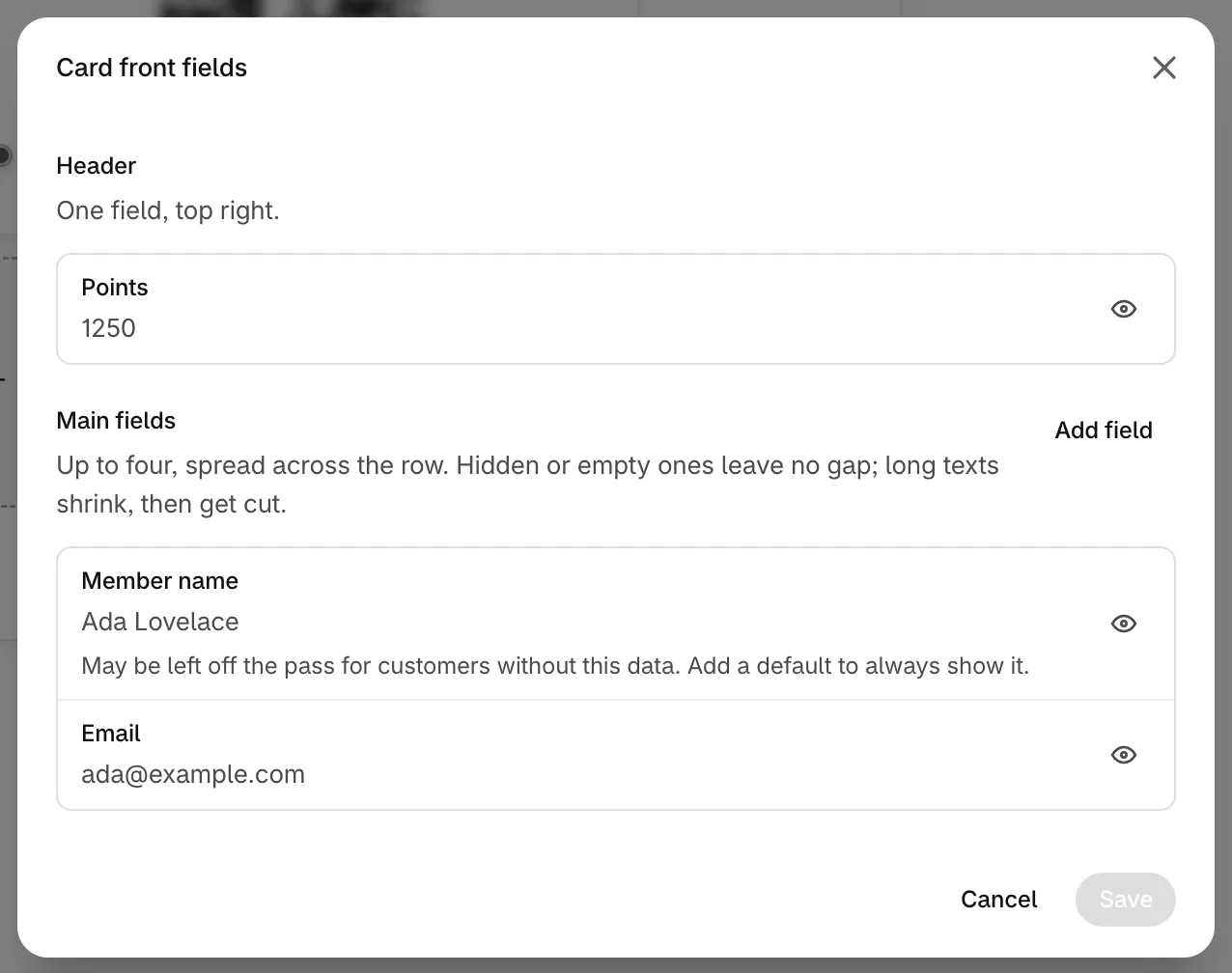
Every field on the front has its own Show this field on the card switch, so you can hide the balance, the name or the tier on each wallet. To hide points, open Card front fields and turn off Top right field on Apple Wallet and First row, left field on Google Wallet, then click Save in the save bar at the top of the page. Hiding the balance on the card doesn't turn off points or hide the balance in the Loyalty Hub or customer app. See how to edit the texts on the card front.
Back of Card 
The back of the card includes dynamic sections:
| Section | Description |
|---|---|
| Rewards | Link to available rewards page |
| Referral | Unique referral link and tracking |
| Profile | Customer profile management |
| Custom | Any content you set up |
Sections can be translated into multiple languages so customers see content in their own language on both Apple Wallet and Google Wallet.
You can also configure wallet actions that open program pages, your online store, or a custom destination. Apple Wallet supports up to two tiles with different action types. Google Wallet has one front button and a separate link in the pass details. See how to design the card and set up its actions.
On Google Wallet, the front shows two rows of two fields each, which you can change in Card front fields. Back-of-pass sections can also show a label, content, or both.
Installation Methods 
Customers can install their card via:
Include the download link in any email via Klaviyo Flows or Shopify notifications.
Storefront Widget
Add the JeriCommerce widget to your Shopify theme for on-site installation.
QR Code
Print QR codes on receipts, packaging, or in-store displays.
Checkout Extension
Offer the card during or after Shopify checkout.
Pass-installed customers show meaningfully higher repeat purchase rate and average spend compared to non-installed customers.