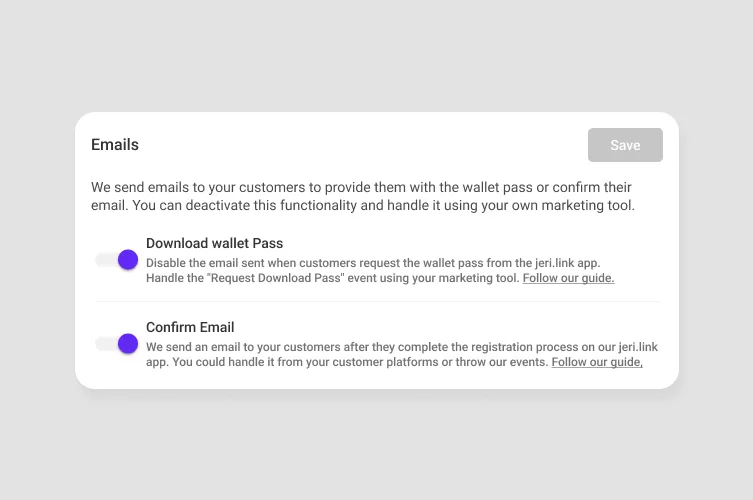
JeriCommerce can send a set of automatic emails to your customers as they move through your loyalty program. You decide which ones we send. Turn each one on or off from Settings → Customer flows → Automatic emails. When you turn an email off, you can handle that message yourself through our events instead. To replace these emails in Klaviyo, follow the step-by-step automatic email guide.
The automatic emails 
| When it sends | What it does | |
|---|---|---|
| Confirm email | Right after a customer signs up | Activates new members so they start earning points and rewards from day one |
| Download loyalty card | After registration | Invites members to add their loyalty card to their phone |
| Coupon assigned | When a coupon is given to a customer | Lets customers know a coupon is waiting and nudges them back to make a purchase |
| Reward available | When a customer has a new reward to claim | Reminds customers they have a reward ready before it goes unused |
| Reward redeemed | After a customer redeems a reward | Confirms the reward and emails the discount code so it lands in the customer's inbox |
The Reward available and Reward redeemed emails preserve the formatting in your reward descriptions.
These emails automatically adapt to each customer's language when it is one of your supported languages. Otherwise, they use your program's default language, then English. Set your supported languages in Settings → Customer Flows → Languages. See Languages & Translations for more on multi-language support.
If you replace an email with a Klaviyo Flow, its content and translations are managed in Klaviyo. JeriCommerce's automatic language fallback does not copy into a Klaviyo template.
Each automatic email also includes a loyalty status footer when customer data is available. The footer can show the customer's points, level, and tier points with your program's point labels.
Replies to Coupon assigned and Reward available emails use your program's contact email, so your team can respond to customers directly.
Turn emails on or off 
Some brands need full control over every email their customers receive. JeriCommerce lets you turn off any of the automatic emails so you can send your own instead.
Before turning off an email, make sure you have your own version ready, otherwise your customers won't receive important messages like the wallet pass download link.
Open email settings
Go to Settings → Customer flows → Automatic emails in the JeriCommerce admin area.
Choose which emails we send
Use the checkboxes to turn each automatic email on or off, one by one.
Set up your own email flow
For any email you turn off, follow the sections below to make sure your own version covers what the default one handled.
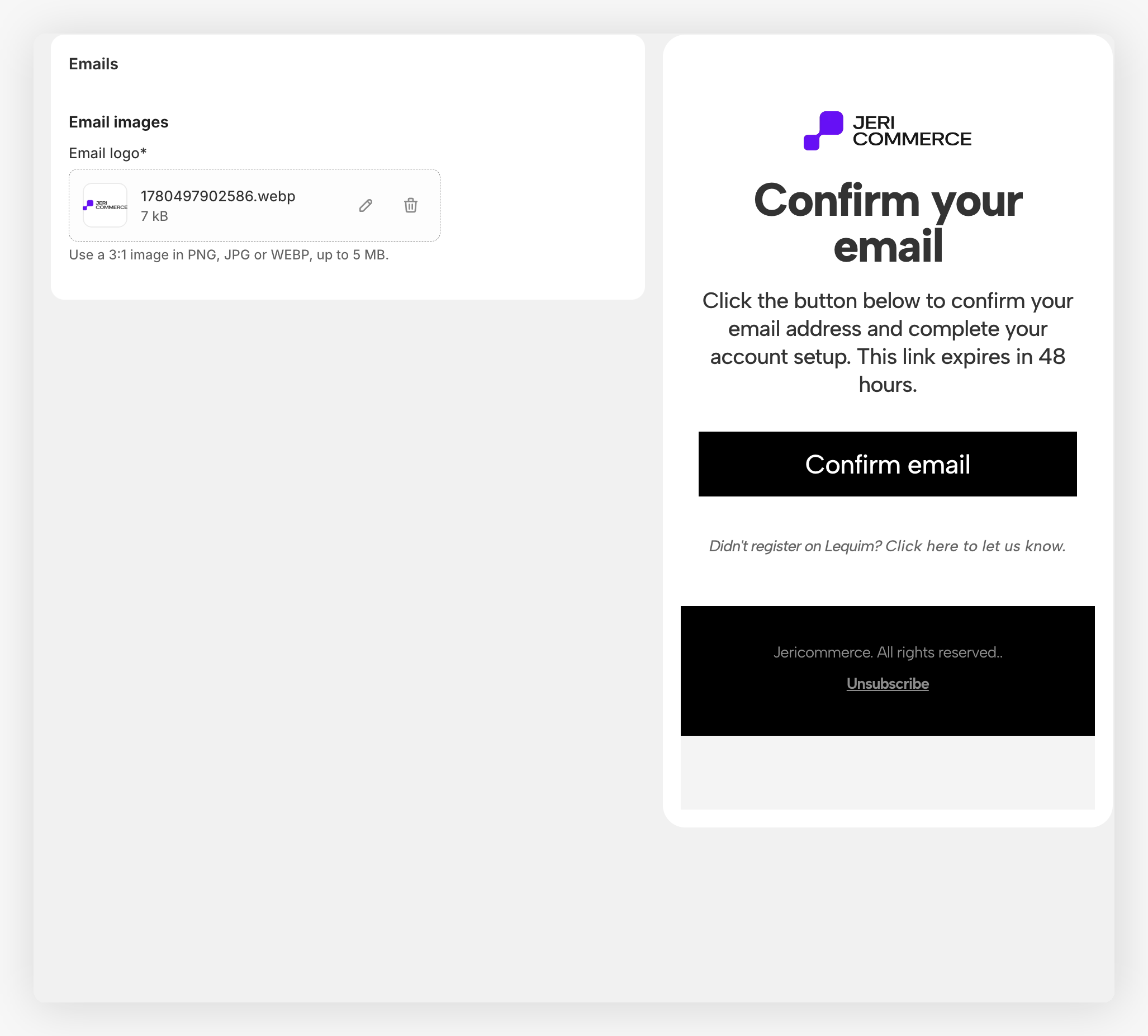
To change the logo, open Customize → Emails. Upload your logo and check the email preview before saving.
Download wallet pass email 
This is the most important email in the flow. It contains a one-time link that lets customers install their wallet pass.
Customers who sign up through the web app can install their wallet pass during registration — they don't need this email. All other flows (Shopify POS, Klaviyo, API) depend on this email to deliver the install link.
Subscribe to the wallet pass event
On your email platform or API integration, subscribe to the Wallet pass requested event.
Send the download link
When the event fires, it includes a one-time download URL as a property. Use this URL in your email so the customer can install their wallet pass.
The download URL is only included in the event when you have turned off the automatic email from JeriCommerce. If the default email is still active, the URL won't appear in the event payload.
Alternative ways to get the download link
You can also get the download link through:
- Feature Sync — available for Klaviyo and Shopify integrations
- API — request it directly from the JeriCommerce API
See Download wallet pass links for a full breakdown of how these links work.
Confirmation email 
This email is sent automatically when a customer creates an account through the JeriCommerce web app (jeri.link/{program-name}/register).
The Customer created event can trigger a welcome email in Klaviyo. However, the event reference does not include a JeriCommerce verification URL. If customers must click a verification link to activate their account, keep the built-in confirmation email on unless you have another supported way to generate that link.
To handle the welcome message yourself, you have two options:
- From your platform directly — trigger a welcome email when a new customer is created in your system
- Using JeriCommerce events — use the
Customer createdevent to trigger a welcome email from Klaviyo or another email platform
Coupon, reward, and redemption emails 
Three more automatic emails keep customers moving through your program:
- Coupon assigned sends when a coupon is given to a customer, so they know there's something waiting for them.
- Reward available sends when a customer has a new reward ready to claim, reminding them to come back before it goes unused. It includes a Visit the store button that opens your storefront loyalty widget when available.
- Reward redeemed sends after a customer redeems a reward. It confirms the reward and includes the discount code, so the customer has it right in their inbox and stays motivated to keep earning.
Each one has its own checkbox on the Automatic emails card. If you prefer to send these from Klaviyo, uncheck it only after the matching flow is live. Use Coupon assigned, Reward redeemable, or Reward redeemed as the event metric. See Send Automatic Emails from Klaviyo for the event properties and testing checklist.