This guide helps you launch the JeriCommerce Wallet Pass if you're already using LoyaltyLion as your loyalty engine. You'll learn how to link both platforms, customize the Wallet, distribute it to customers, and build automation flows to boost retention and engagement.
During Shopify onboarding, choose I already have a loyalty program (LoyaltyLion) to create your JeriCommerce account and continue to the integration settings. This connects the existing program instead of creating a new JeriCommerce points program.
1. Overview of Your Stack 
Before you begin, confirm your tools:
- Shopify or Shopify Plus
- LoyaltyLion (installed and set up)
- JeriCommerce Wallet (installed from the Shopify App Store)
- Automation platform: Klaviyo or Shopify Flow (optional)
Shopify Plus stores can turn on Multipass login for frictionless navigation between wallet and store.
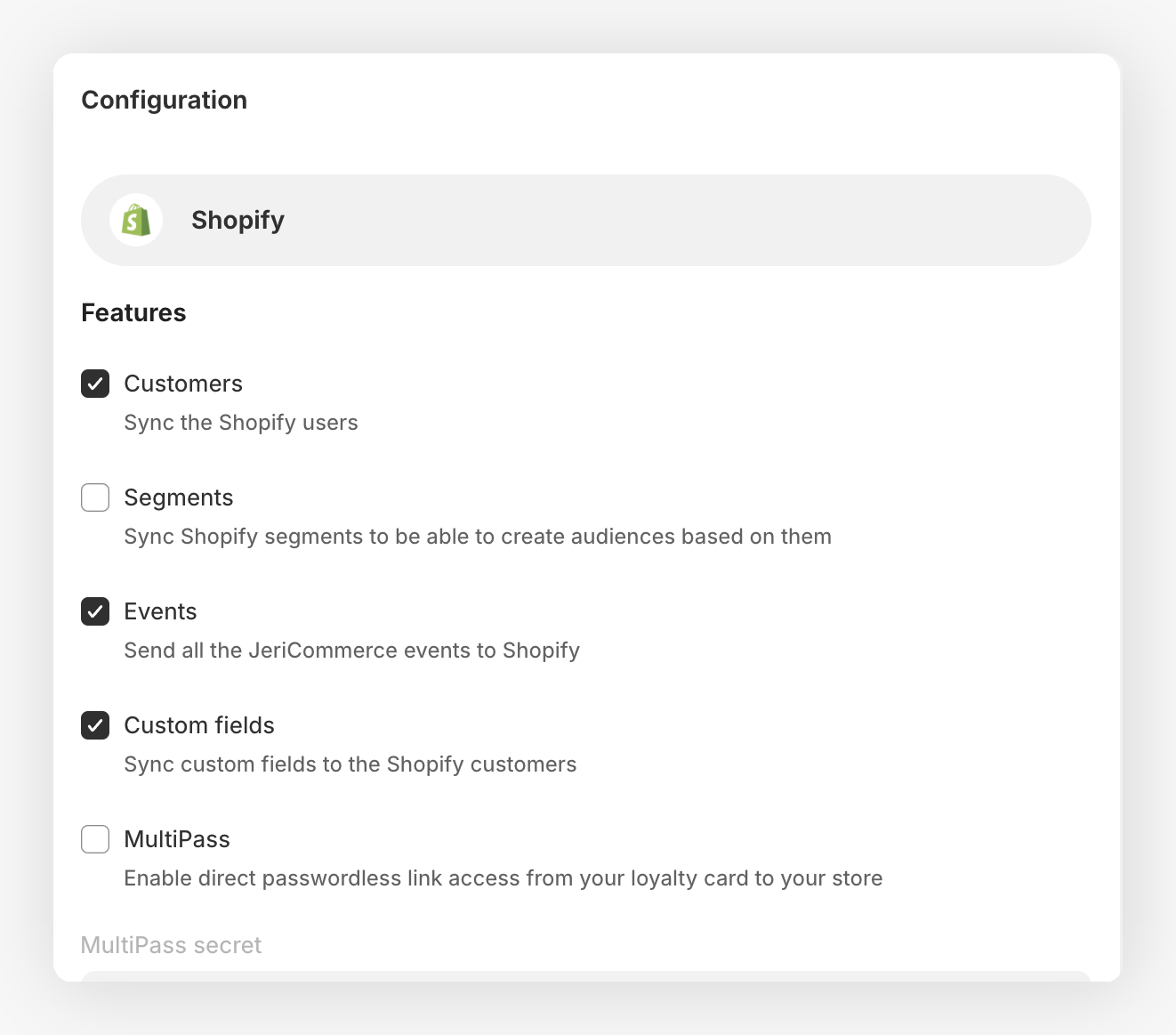
2. Syncing LoyaltyLion with JeriCommerce Wallet 
JeriCommerce Wallet connects directly with LoyaltyLion's customer data and loyalty information.
Learn how to set up the LoyaltyLion integration
Sync Required Data 
- Make sure LoyaltyLion is active and your Shopify customers are properly synced.
- The Wallet will display LoyaltyLion data including:
- Current point balance
- Tier level (if set up)
- Tier name and badge (customizable in LoyaltyLion)
- Available rewards
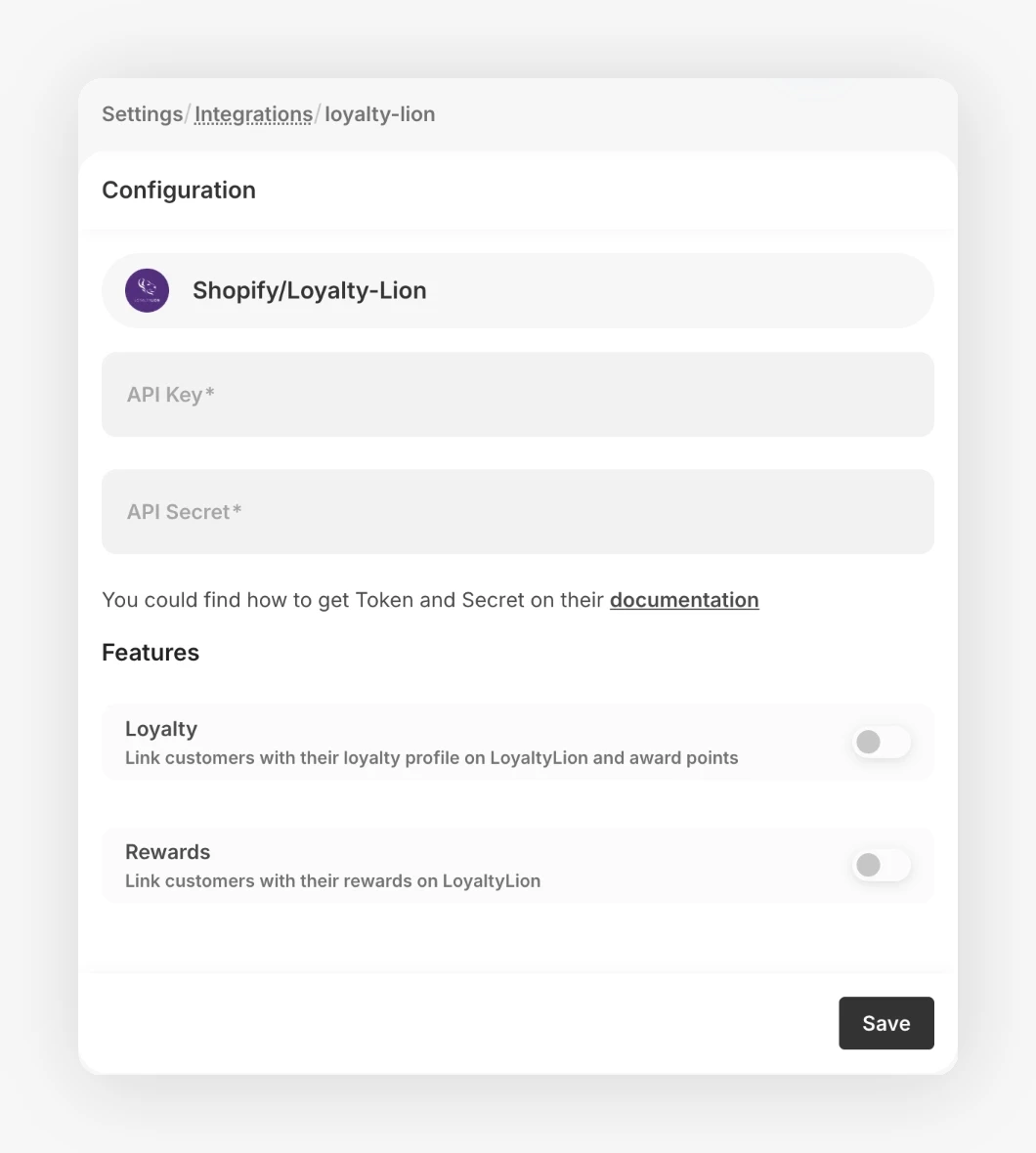
Notifications on balance updates and available rewards are sent automatically and can be edited through customer flows. Learn how this works.
Customize What's Shown in the Wallet 
- JeriCommerce Wallet pulls real-time loyalty info from LoyaltyLion.
- You can choose what appears on the Wallet pass (e.g., hide/show tier, show only the point balance).
Tier programs and VIP levels will only appear if they're set up in LoyaltyLion.
3. Wallet Pass Design and Setup 
Customize the Loyalty Card 
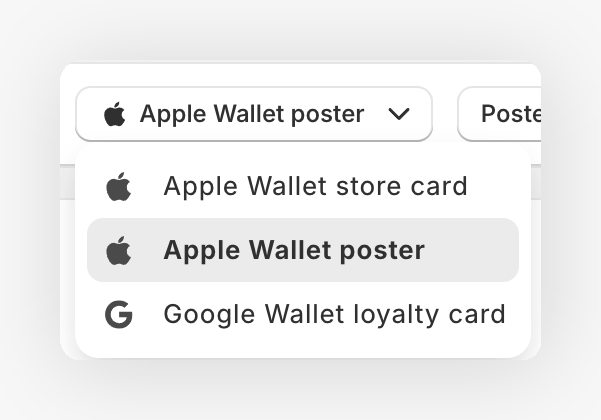
- Open Customize → Loyalty card and choose Apple Wallet store card, Apple Wallet poster, or Google Wallet loyalty card.
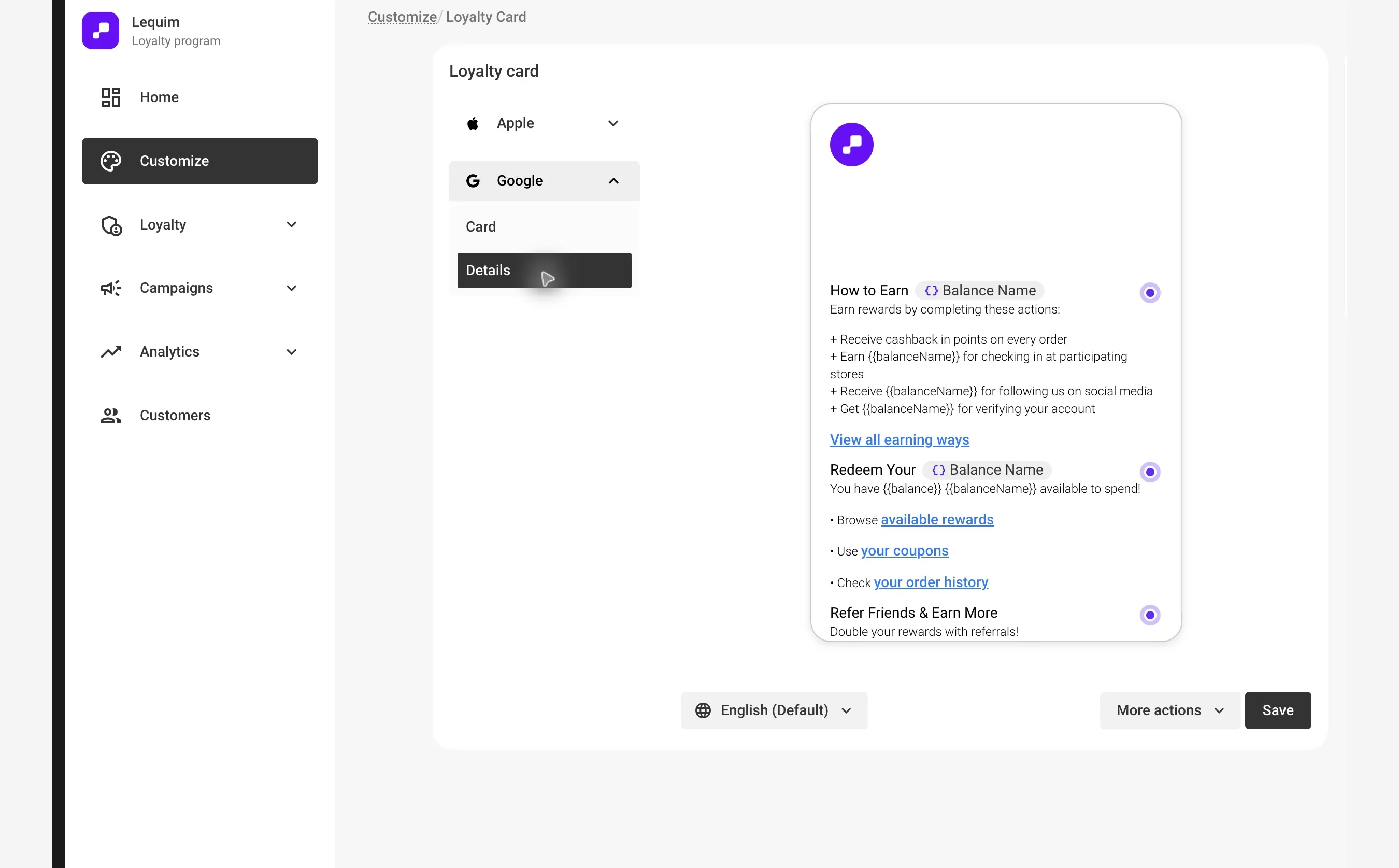
- Under Card (Poster for the Apple Wallet poster), customize the brand visuals. Open Details to add links customers can use from the back of the pass.
- Create different visuals for different tiers.
Add Key Links to the Pass 
Set up sections and links embedded in the Loyalty Card for quick access to:
- Shopify login (Multipass login if on Shopify Plus)
- Customer profile or subscription page
- Rewards profile — Add link to rewards on the Loyalty Card
- Product or landing pages
Make sure the LoyaltyLion sync is complete and Multipass is turned on (if applicable) before distributing passes.
4. Shopify and Web App Placements 
LoyaltyLion remains the main loyalty engine and customer-facing loyalty experience. For this launch path, use JeriCommerce to make the loyalty card easy to install and to connect the card/web app back to the right LoyaltyLion and Shopify destinations.
Web App and Loyalty Card Links 
Customize the JeriCommerce web app and wallet pass links so customers can move cleanly between their loyalty card, Shopify account, and LoyaltyLion rewards experience.
- Add the LoyaltyLion rewards link to the wallet pass. Add link to rewards on the Loyalty Card
- Configure the wallet pass back sections with the store login, customer account, rewards page, subscriptions, or other key customer destinations. Customize back sections
- Review the customer web app connected to the wallet pass. Web App connected to the Wallet Pass
Loyalty Card Download Placements 
Add wallet card download entry points where customers already interact with the store:
- Wallet Pass Download Extension — Add a download button to account, profile, or theme pages. Setting up the Wallet Pass Download Extension
- Checkout or post-purchase placement — Add the wallet download link where customers are most likely to save it after buying.
- Receipt QR Code — Print a QR code on receipts so customers can install or open their wallet pass after purchase. How to add a QR code to your receipts
5. Wallet Download Links 
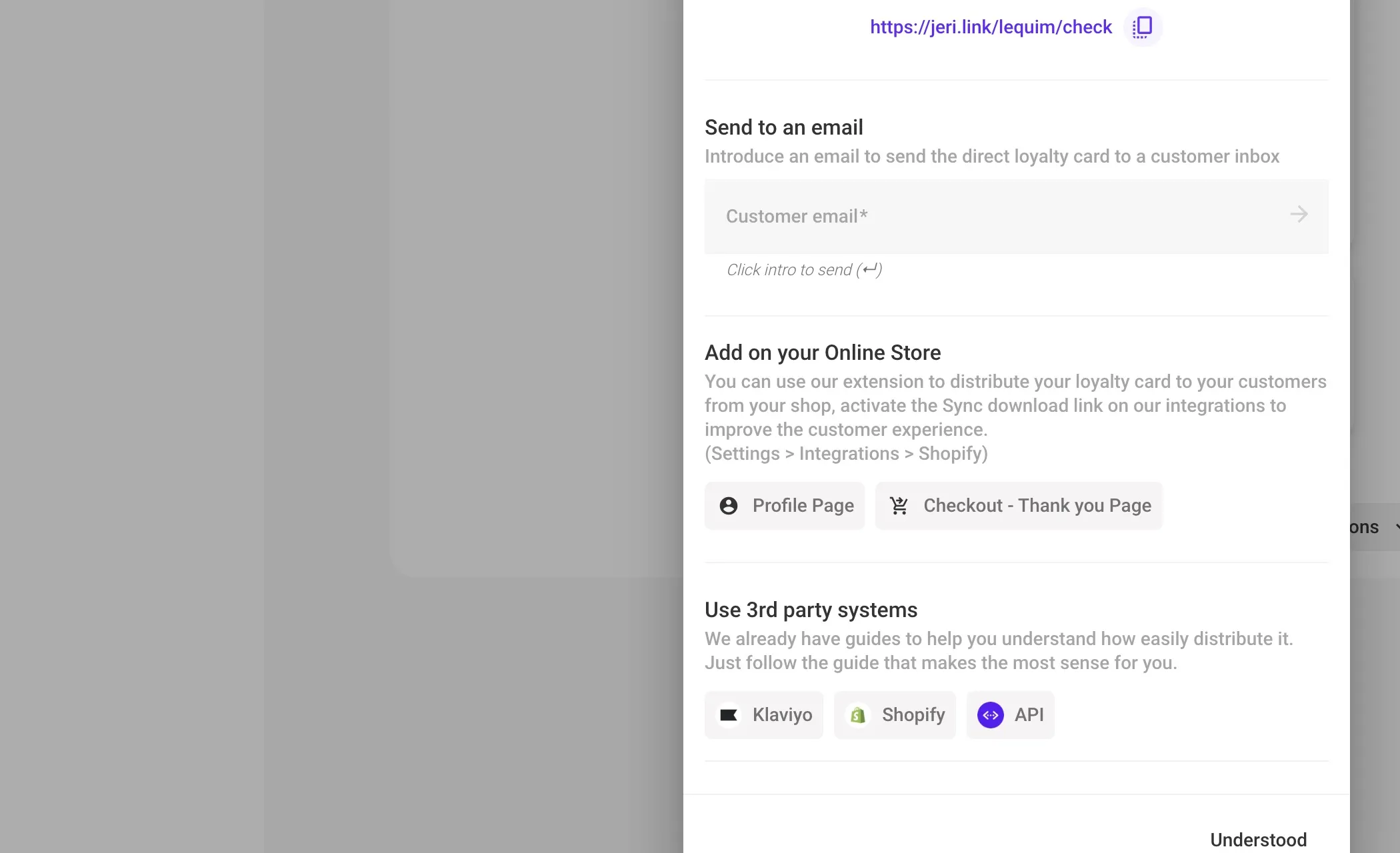
You can distribute wallet passes using dynamic or static links.
Learn how to distribute loyalty cards to your customers and how to create a unique customer link that sends the loyalty card to their email with a single click.
Distribution options:
- Welcome emails or SMS
- Account, profile, LoyaltyLion, or web app pages
- Post-purchase / Thank you screen
- Landing pages or pop-ups
6. Marketing Automation Integration 
With Klaviyo 
- Install the Klaviyo integration
- Send the automatic loyalty emails from Klaviyo
- Sync segments and events with Klaviyo
- Send push notifications from Wallet via Webhooks
With Shopify Flow 
Find available flow templates or create your own flows using Wallet triggers and actions.
7. Campaign Ideas to Launch 
Location-Based Campaigns 
- Trigger a push when customers are near a store.
- Send geo-targeted discounts.
How location-based notifications work | Manage locations and devices
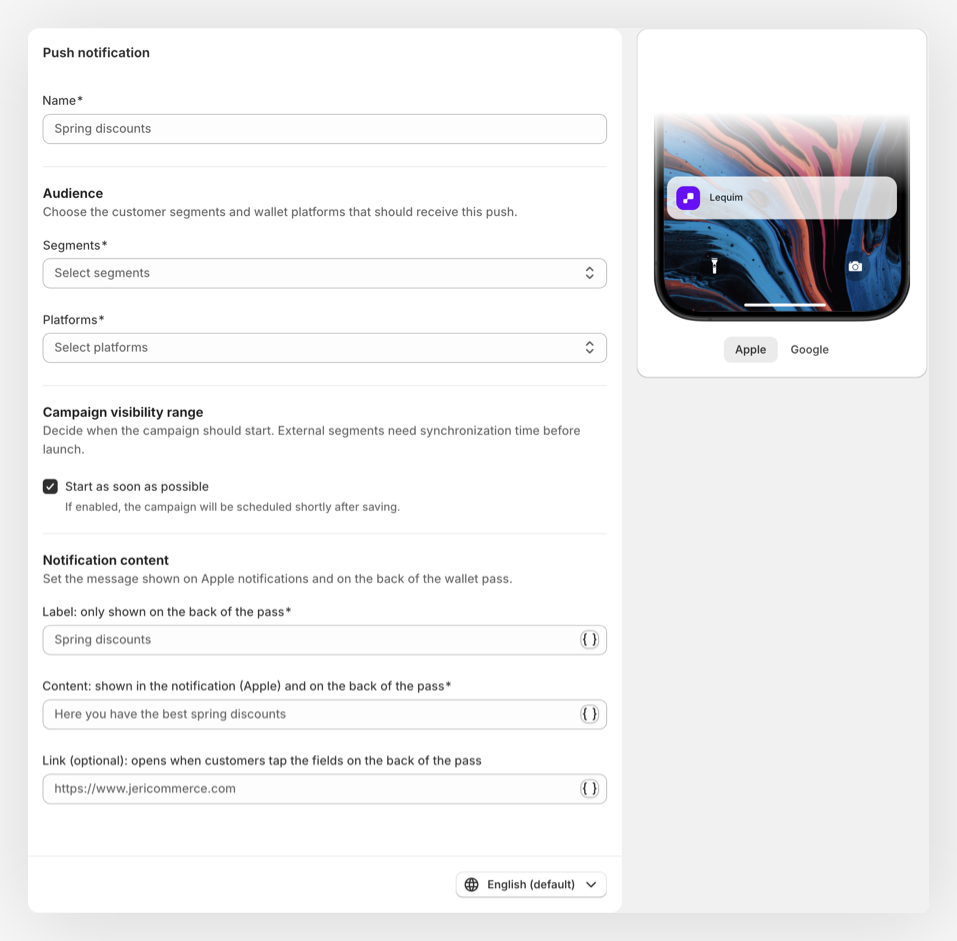
Push Notifications 
- Announce sales or new arrivals.
- Send time-limited offers.
8. Promote Wallet Adoption 
Increase visibility and downloads with these ideas:
- Add a Wallet button to the account, profile, LoyaltyLion, or web app page.
- Offer bonus points for first-time downloads.
- Highlight Wallet features in onboarding content.
- Add download links to existing emails and workflow journeys.
- Include a QR code at in-store counters.
9. Customer Preferences & Compliance 
- In Customer Flows, choose which fields to collect during the registration process.
- Set up policy and agreements for notification consent if needed.
10. Omnichannel — Shopify POS 
If you have a retail store using Shopify POS, follow these guides to integrate JeriCommerce in your physical stores:
- How to add JeriCommerce tiles to your Shopify POS
- Scan the customer's loyalty card on Shopify POS
- Receipt QR Code — Add a QR code to printed receipts so customers can download or open their wallet pass after purchase.
- Store QR Code — Download a QR code poster from the JeriCommerce admin and display it at your counter or entrance so walk-in customers can join your loyalty program on the spot.
You're all set up and ready to launch your loyalty card program with JeriCommerce!